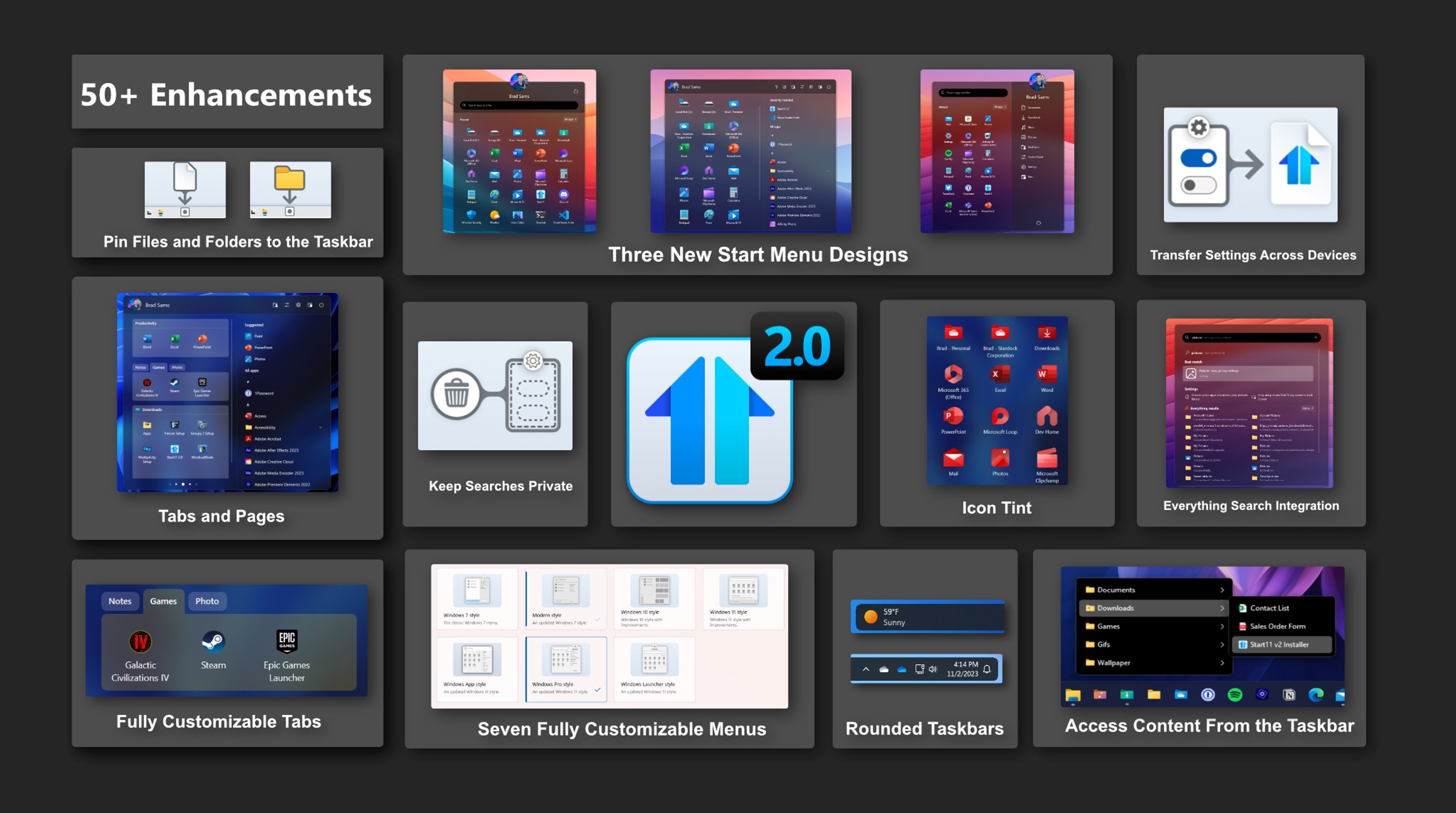
Start11 v2 Is Ready, Now with Rounded Taskbars and a Lot More

Turn your taskbar into a modern experience with new style options

Today is the day, Start11 v2 is ready for prime time – we are taking the Release Preview tag off and adding new features. Rolling out now is the latest version of Start11 v2 with new features for the taskbar as well as a significant number of bugs being squashed.

If you want a deeper dive into many of the new features in Start11 v2, check out this earlier post from the release preview, but there have been a couple of additions since our initial release. Especially the updates for the taskbar - let's dive in.

Easily the biggest request we got after announcing Start11 v2 was the option to round the corners of the taskbar and we are happy to share that this feature is now included in the release today. And, not only can you round the corners, but in true Stardock fashion, you can fully customize the layout with various options to dial in the perfect taskbar for your desktop.

To begin building your modern taskbar, click on the Taskbar option in Start11 v2, then click the Taskbar blur, transparency, color, and rounded corners dropdown menu. From there you can select the intensity of the rounded corners, your preferred offsets on both the X and Y axis, and more.

One of the neat features that is included is how the taskbar can adapt if you are using a full-screen app. When a taskbar is floating with rounded corners, it can create an odd visual experience on the sides and below the taskbar when using an app that spans the entire display. To help reduce this visual irregularity, you can have the taskbar dynamically adapt to a traditional style layout when a full-screen app is detected.

These are the little things that add up that make Start11 v2 a truly great experience on Windows 10 and Windows 11. While the work is never done and we will continue to monitor feedback and patch bugs, this is a major milestone that we are crossing as we have taken Start11 from a product that brought back old features of Windows to a new era where we are adding new functionality that makes Windows a little more personal and a lot more productive.

116,538 views 68 replies
Reply #1 Top

Excellent! Hope a W10 task bar is also in the works! :congrat:  

Reply #3 Top

Quoting StevieTNZ, reply 2

How do I fix this issue? (Win 11 Pro)


What settings do you have for your taskbar colouring?

Reply #6 Top

Stevie, it looks like you are on an older version of start 11 v2 in that screen shot. There should be an update available. Go to [about] and select [check now]

Reply #7 Top

Is it a free upgrade. 

im on v1.47

when i look it wants me to pay again and I only paid for it in october

Reply #8 Top

Still unsolved.

Reply #9 Top

Quoting c242, reply 8

Still unsolved.


Which style is that with what settings exactly?

Reply #10 Top

Quoting StevieTNZ, reply 5

Note: before installing the update, that menu (that I can barely see now) was fine.

I would need to know your accent colour set in Windows and if colour is set to be applied to the start menu.  Plus if the OS is in all light, all dark, apps light, taskbar dark or apps dark, taskbar light mode.

Reply #12 Top

Quoting PhoenixRising1, reply 6

Stevie, it looks like you are on an older version of start 11 v2 in that screen shot. There should be an update available. Go to [about] and select [check now]

Says I'm up to date.

Reply #13 Top

Quoting Neil, reply 10


Quoting StevieTNZ,

Note: before installing the update, that menu (that I can barely see now) was fine.


I would need to know your accent colour set in Windows and if colour is set to be applied to the start menu.  Plus if the OS is in all light, all dark, apps light, taskbar dark or apps dark, taskbar light mode.

How do I find that info out?

Reply #14 Top

Quoting StevieTNZ, reply 13


Quoting Neil Banfield,


Quoting StevieTNZ,


Note: before installing the update, that menu (that I can barely see now) was fine.


I would need to know your accent colour set in Windows and if colour is set to be applied to the start menu.  Plus if the OS is in all light, all dark, apps light, taskbar dark or apps dark, taskbar light mode.


How do I find that info out?

Windows personalization settings.  Under colour.

Reply #16 Top

Quoting StevieTNZ, reply 15


Quoting Neil Banfield,
Windows personalization settings.  Under colour.


What colour is your accent colour set to?  It says manual but the screenshot clips off the colour.

Reply #18 Top

I am having the exact same issue Neil as StevieTNZ, and have the exact same settings except I have transparency turned off.

Reply #19 Top

Hi,

Can anyone help please.

Start 11v2 changes the right click menu colour of the start menu.

From the screenshot attached, you will see my colour preference of the main start menu (in the background - darkish red with white font).

Before with Start11 a right click on the start menu brought up the menu in the foreground of the screenshot, but it was plain old Windows grey, which I don't mind. Therefore is it possible to revert to the old right click menu (Windows grey) or have it the same colour and font as my main start menu (the background as described above). As you will see from the screenshot, the colour produced on the right click menu along with black font makes it quite difficult to read.

All help gratefully received.

Thanks,

Paul.

Screenshot


Reply #20 Top

For those of you with the menu issue, you can avoid this by setting the following registry key : 

Computer\HKEY_CURRENT_USER\Software\Stardock\Start8\Start8.ini\Start8

Create a value called "S11_MenusAreSolid" with type String, data should be "1"

Reply #21 Top

Quoting Neil, reply 20

For those of you with the menu issue, you can avoid this by setting the following registry key : 

Computer\HKEY_CURRENT_USER\Software\Stardock\Start8\Start8.ini\Start8

Create a value called "S11_MenusAreSolid" with type String, data should be "1"

Not many people know how to do that Neil, does this mean Stardock will do a fix?

Reply #23 Top

I have the same issue as Neil, Lightstar, and StevieTNZ, and after playing a bit with the Windows Personalization I think I know what is causing the issue, at least in my case. Only happens with Windows 7 style by the way. If I change it to Windows Modern style the issue goes away.

I have set my Windows mode to Dark while having the App mode to Light. If I have both Windows mode and Apps mode as the same, either Dark or Light, the problem goes away, which isn't what I want. Rolling back to version 1.4.7 for now until they fix it.


Reply #24 Top

Quoting Neil, reply 20

For those of you with the menu issue, you can avoid this by setting the following registry key : 

Computer\HKEY_CURRENT_USER\Software\Stardock\Start8\Start8.ini\Start8

Create a value called "S11_MenusAreSolid" with type String, data should be "1"

That fixed the issue for now but I do hope that Stardock fixes this without making people play with the registry since not all will be comfortable doing it.

Also, as feedback, the Windows 7 Style from the previous 1.4.7.2 version was WAY BETTER honestly. Icons spaces look awkward, Control Panel showing in 2 pages doesn't look good either...I mean...if you call it Windows 7 Style it needs to be Windows 7 Style and not a mix of Windows 7, 10, and 11. Just my two cents

Reply #25 Top

Quoting Galthariel, reply 24


Quoting Neil Banfield,

For those of you with the menu issue, you can avoid this by setting the following registry key : 

Computer\HKEY_CURRENT_USER\Software\Stardock\Start8\Start8.ini\Start8

Create a value called "S11_MenusAreSolid" with type String, data should be "1"


That fixed the issue for now but I do hope that Stardock fixes this without making people playing with registry since not all will be comfortable doing it.

We will be.  Thats a short term fix only.  We already have an internal build with a fix for that and the issue with overlapping shutdown button with the Win Launcher style when you hide the search and the username fields.