[Tutorials] Modding, Reference Files, Modeling, Texturing & Converting


The Forge Tools 3 has modding documentation which is a good introduction, but much of the information is outdated and has changed for Entrenchment, Diplomacy and Rebellion. According to the original Sins Mod Set (2008), you will need to copy the 'entire' folder set from your SoaSE install directory to the created mod folder, then convert the files you wish to modify to text. Those which are not included will not be used by the game.

For the Entrenchment, Diplomacy expansions, and Rebellion, you only have to include the files that you want to change and if you want to "remove" an original file you have to remove it from the entity manifest (which is explained in the documentation). Also note that it includes some reference files which are outdated and you will need to create your own or download the archives for Rebellion or Trinity that includes all current versions.

Each faction can build a max of 9 tactical, 9 logistical, 1 titan, 9 capitals, 9 frigates and 9 cruisers (note that frigates and cruisers are the same, but they are just shown on different places in the U.I.). You can also place tactical modules in a logistics slot and vice-versa. An entity can have a max of 3 different weapons. As far as it is known there isn't any limit on research levels.

TECH = TEC
PSI = Advent
PHASE = Vasari

The first thing on a new modder's list should be the Developer.exe's. Weather you are starting to build a new mod or testing a downloaded mod this tool is very useful for finding errors and game testing. If you are not sure about the errors generated or you want to keep track of them you will want to Enable Logging, then you can copy the information to paste into a thread in the modding forum.


See Also:


1,344,615 views 120 replies | Pinned
Reply #2 Top

 Softimage|XSI


Note: Softimage|XSI is no longer available other than on modDB. I recommend only learning XSI enough to export your models to mesh.


Know that you can use ANY modeling program to create your mesh. Be it 3DSMax, Lightwave, Maya, Blender, etc. etc. However to make it ready for import into sins you must finish it in XSI. This is mainly because of the tangents, and the way XSI assigns materials to the mesh. Which means your modeling program must be able to export into a format XSI can import. .Obj is a good choice. If that fails then Direct X format will work as well. I have had bad luck importing .3ds into XSI. The mesh becomes corrupt, and I don't know why.

Major Stress


Autodesk Softimage Mod Tool software (formerly XSI Mod Tool) is a free 3D modeling and animation package for creating non-commercial games and "modding" (modifying games). Autodesk Softimage Mod Tool 7.5 is based on the same professional toolset found in Autodesk Softimage 7.5 software, used by game developers (including Ironclad) to create 3D models, levels, props, and animation.

Free for Non-commercial Game Creation and Modding.

Available from  ModDB (exe - 445MB) Softimage® autodesk.download.com
Download the Artist’s Guide to Softimage with 8 hours of video training lessons. These lessons do assume the user has some experience with modeling. (exe - 1.72Gb) Softimage® autodesk.download.com


XSI Settings

The mod tool does not allow use of some options.

default.xsiprojects

The default project load was a real pain, so I set it to do it manually with xsi project path [comma, space] project name. I deleted all the other project references.

Open in notepad:

C:\Users\%USERNAME%\Autodesk\Softimage_Mod_Tool_7.5\Data\default.xsiprojects

Code: javascript
  1. //
  2. //.xsiprojects resource file.
  3. //
  4. E:\My_XSI_Project, My_Project
  5. // 


ModStartup.js

Open in notepad:

C:\Softimage\Softimage_Mod_Tool_7.5\Addons\ModTool\Application\Plugins\ModStartup.js


If custom toolbars are created, they will be stored at

C:\Users\%USERNAME%\Autodesk\Softimage_Mod_Tool_7.5\Application\toolbars


F.A.Q.s (lost page)

How to preview your model in Sins?
Is my model too small or big?
My model flies sideways or backwards?
My textures are not showing up?


   XSIs Keyboard & Mouse


See Also:

SOASE 3dsmax importer and exporter tool  Updated for Rebellion

Mod Tool 7.5 OBJ Exporter

Reply #3 Top

Blender for SoaSE


Blender is a professional free and open-source 3D computer graphics software product used for creating animated films, visual effects, art, 3D printed models, interactive 3D applications and video games. Blender's features include 3D modeling, UV unwrapping, texturing, raster graphics editing, rigging and skinning, fluid and smoke simulation, particle simulation, soft body simulation, sculpting, animating, match moving, camera tracking, rendering, video editing and compositing. It further features an integrated game engine.


There are 3 main sections that need to be transferred between XSI and Blender.

  • the 3D mesh
  • the mesh points (weapons, lights, engine effects etc)
  • materials and textures
 

Import/Export

OBJ can be easily import or export to and from multiple programs.
OBJ files will transfer the model, 1 UV map, and 1 diffuse material.

Mod Tool 7.5 OBJ Exporter


FBX is another common format that both XSI and Blender uses but the XSI version is outdated. Autodesk has FBX converters I used to successfully test exporting from FBX 6.0 in XSI, to FBX 7.0 import in Blender. This also imported the mesh points but flipped the scene.

FBX® 2013.3 Converter


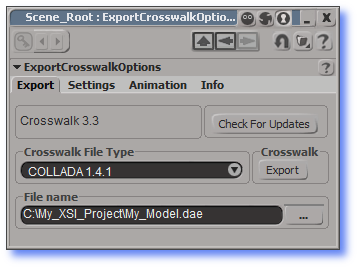
DAE or Collada imported the complete scene into blender with the file structure intact.

File > Crosswalk > Export

Select COLLADA 1.4.1 from the File Type drop down list.


Materials

The major difference between XSI and Blender are the rendering engines. XSI uses 'Mental Ray' and Blender uses 2 called 'Blender Render' and 'Cycles'.

The workflow I use uses TGA textures in Blender, then I assemble the channels into .DDS using GIMP. Then connect the the new textures to the material is XSI, and export to .MESH.


Export Blender to XSI untested


Reply #4 Top

/bookmarked


I've been doing some on and off modelling in XSI, with various results... Whilst not really related to Sins modding, you don't happen to have anything on Rendering?

Reply #5 Top

Install and Pod Paths

Rebellion

Install

C:\Program Files (x86)\Steam\steamapps\common\Sins of a Solar Empire Rebellion

Mods

E:\Documents\My Games\Ironclad Games\Sins of a Solar Empire Rebellion


Trinity


Mods

C:\Documents and Settings\[Username]\Local Settings\Application Data\Ironclad Games\Sins of a Solar Empire


Install Directory
http://wiki.sinsofasolarempire.com/index.php/Install_Directory


Reply #6 Top

This needs to be pinned. Contact Kryo and see about getting this pinned!

Reply #7 Top

You have covered some great stuff hear, I'm sure many people would find this helpful.

One thing that I found difficult, to start with, when modeling was how to do UV's. I still have some trouble getting some of the angles of some polygons that are at 45 degree's or so from any projection or subprojection. I haven't been able to find much info on how to do UV's. If you have any more info on this aspect of modeling, I, and I'm sure others in the community would be very greatful.

Reply #10 Top

oh my god!! thank you! i wanted to start modeling, and i downloaded the tool, but i was completly lost and couldn't find any tutorials 

Reply #11 Top

Well mate... I think I love ya, I've really been struggling to find XSI tutorials by and large, but here we go, thanks a dozen.

Reply #12 Top
Audacity  Download
Edit and create OGG sound files for Sins.
Winamp Download
Play Sins OGG files with Winamp.

Sins of a Solar Empire uses OGG files for music and event sounds.

It is possible to use .mp3 and .wav files. Edit the GameInfo\SoundDialogue.sounddata or GameInfo\SoundMusic to reflect the different extensions.

1104 event sounds 73 music tracks. The original Sound files were 216 MB.

Event Sounds

Nominal bitrate: 128 kbps
 
 
Channels: 1
Sampling rate: 44100 Hz


Music Tracks

Nominal bitrate: 128 kbps
 
 
Channels: 2
Sampling rate: 44100 Hz
 
 
Note: The Channels are mono for event sounds and stereo for music tracks. Creating an event sound in stereo will cause Sins to play this over a single channel.

There are two things you should be concerned about when creating your audio files; those are sampling rate and bit rate.

Sampling rate represents the sound frequency range. The higher sampling rate the file is, the wider the frequency range is. In other words, higher is better quality. Your lows will be lower, your highs will be higher. Lower rates can dampen the highs and lows so that audio quality is lower. You won't notice that much on a cheap set of headphones, but on high quality ones you'll notice a huge difference.

Lets talk about sample rate and the Nyquist Theory.  This theory is that the actual upper threshold of a piece of digital audio will top out at half the sample rate.  So if you are recording at 44.1kHz, the highest frequencies generated will be around 22kHz.  That is 2khz higher than the typical human with excellent hearing can hear. 


Bit rate defines how many "bits" of space the file takes per second of audio. Obviously the higher the bit rate, the higher quality audio you'll have.

So for best quality, you want high sampling rates and high bit rates. Sampling rates do not affect file size as much as bit rates do, so if space is at a premium (like on an expansion card) a good trade off is to create high sampling rate files with a lower bit rate, or use a variable bit rate (VBR) with a moderately high "base" setting, like 128kbps.

GameInfo\SoundMusic A .txt document for viewing purposes only.

This chart will allow a comparison between the different music types and when they are played.

  actionLevel actionRange emotionLevel emotionRange
"MUSIC_FRONTEND" 0.5 0.5 0.0 1.0
"MUSIC_TEC_OPENING" 0.5 0.5 0.3 0.5
"MUSIC_TEC_THEME_1" 0.6 0.5 0.3 0.7
"MUSIC_ADVENT_THEME_1" 0.4 0.4 0.2 0.8
"MUSIC_VASARI_THEME_1" 0.25 0.3 0.3 0.7
"MUSIC_BATTLE_1 - 9 & 11" 0.75 0.35 0.0 1.0
"MUSIC_BATTLE_10 & 12 -13" 0.6 0.4 0.0 1.0
"MUSIC_ADVENT_BATTLE_1 & 2" 0.7 0.3 0.0 1.0
"MUSIC_VASARI_BATTLE_1" 0.7 0.3 0.0 1.0
"MUSIC_QUIET_1 - 7" 0.15 0.15 0.4 0.6
"MUSIC_QUIET_8" 0.15 0.15 0.4 0.5
"MUSIC_QUIET_9 - 11" 0.15 0.15 -0.3 0.7
"MUSIC_QUIET_12" 0.15 0.15 -0.2 0.8
"MUSIC_TEC_QUIET_1" 0.17 0.17 -0.3 0.7
"MUSIC_ADVENT_QUIET_1" 0.12 0.12 0.0 1.0
"MUSIC_ADVENT_QUIET_2" 0.15 0.15 0.0 1.0
"MUSIC_SAD_1 - 2" 0.1 0.1 -0.5 0.5
"MUSIC_SAD_3" 0.0 0.2 -0.5 0.5
"MUSIC_ADVENT_SAD_1" 0.1 0.1 -0.6 0.4
"MUSIC_VASARI_SAD_1" 0.1 0.15 -0.5 0.6
"MUSIC_TROUBLE_1" 0.1 0.1 -0.3 0.5
"MUSIC_TROUBLE_2 - 5" 0.2 0.3 -0.5 0.7
"MUSIC_TROUBLE_3 & 6 - 9" 0.2 0.2 -0.5 0.7
"MUSIC_VASARI_TROUBLE_1" 0.15 0.2 -0.4 0.6
"MUSIC_UPBEAT_1" 0.25 0.125 0.0 0.5
"MUSIC_UPBEAT_2" 0.4 0.2 -0.25 0.75
"MUSIC_UPBEAT_3" 0.6 0.4 0.0 1.0
"MUSIC_PIRATE_ANNOUNCEMENT" 0.6 0.4 0.0 1.0
"MUSIC_TEC_ANNOUNCEMENT" 0.0 1.0 -0.3 0.7
"MUSIC_ADVENT_ANNOUNCEMENT" 0.0 1.0 -0.3 0.7
"MUSIC_VASARI_ANNOUNCEMENT" 0.0 1.0 -0.3 0.7
         

actionLevel - between 0 and 1

actionRange - between 0 and 1

emotionLevel - between -1 and 1

Looks like a value if winning or losing scale

emotionRange - between 0 and 1


Reply #13 Top

Thanks for putting all this info up. I've got a fairly dumb question; is it better to use Blender or the free version of Autodesk Softimage for creating ships etc? Or am I getting confused and the two packages are used for completely different modding tasks?

Reply #14 Top

You can use either to make the models. You must however use Softimage or SoftImage Mod Tool(free version) to export to .xsi format for the ConvertData.xsi to convert your model into .mesh which SoaSE uses. So if you create a model with Blender you will need to export it into a format that SoftImage can import, Import it into Softimage and then export it as .xsi following the instructions in the documentation folder of Forge tools.

Here is a list of supported file formats for SoftImage;

Supported File Formats for Data Transfer

Format

Import

Export

Description

AI (*.ai)

Yes

No

Curves saved as AI (Adobe Illustrator) files to be used for creating 3D text. See Importing EPS Files [Surface and Curve Modeling].

AIFF/AIF (*.aiff/*.aif)

Yes

No

Audio Interchange File Format. Import audio as a reference when animating using the animation mixer. See Audio and Animation [Nonlinear Animation].

AIFC (*.aifc)

Yes

No

Audio Interchange Format—Compressed. Import audio as a reference when animating using the animation mixer. See Audio and Animation [Nonlinear Animation].

AMC (*.amc)

Yes

No

Import motion capture files in Acclaim (*.amc and *.asf) formats. See Importing Motion Capture Files [Character Animation].

ANI (*.ani)

Yes

No

Actions from SOFTIMAGE|3D animation files. See Importing and Exporting Action Sources [Nonlinear Animation].

ASF (*.asf)

Yes

No

Import motion capture files in Acclaim (*.amc and *.asf) formats. See Importing Motion Capture Files [Character Animation].

AVI (*.avi)

Yes

Yes

Import (load) an AVI with audio into the animation mixer. Only the sound is loaded and you can use it to adjust the timing of your animation. See Audio and Animation [Nonlinear Animation].

Export (output) rendered image sequences in the AVI (Audio Video Interleave) format. See Creating Movie Files (Windows Only) [Rendering].

BVH (*.bvh)

Yes

No

Import motion capture files in the Biovision (*.bvh) format. See Importing Motion Capture Files [Character Animation].

COLLADA (*.dae)

Yes

Yes

Import and export scenes saved in the COLLADA file format (*.dae). See Importing and Exporting COLLADA Files.

CgFX (*.cgfx)

Yes

No

Softimage can load nVIDIA’s CgFX files (*.cgfx) from the CgFX realtime shader. CgFX files can be dragged and dropped onto objects and clusters and automatically generate property pages based on their content. The shader supports external file referencing as well as inlined code compilation for rapid prototyping. See Effects Shaders (.cgfx Files) [Realtime Shaders].

DDS (*.dds)

Yes

No

Softimage can load the DirectDraw Surface (*.dds) file format as an image clip on Windows only. Note that cubic surfaces are tiled horizontally when loaded.

The following subformats are supported:

• DXT1

• DXT2

• DXT3

• DXT4

• DXT5

• A16B16G16R16

• DDPF_PALETTEINDEXED8

For more information about the DirectX file format, consult the DirectX SDK documentation on MSDN Library website at msdn.microsoft.com/library/

DirectX (*.x)

Yes

Yes

Import and export scenes saved in the DirectX format (*.x) which can contain data about meshes, textures, animation and so on. See Importing and Exporting DirectX Files.

For more information about the DirectX file format, consult the DirectX SDK documentation on MSDN Library website at msdn.microsoft.com/library/

DSC (*.dsc)

Yes

No

SOFTIMAGE|3D file format that contains information about a scene’s hierarchies, camera, lights, animation, and geometry. See Importing SOFTIMAGE|3D Scenes and Models.

DXFX (*.fx)

Yes

No

Softimage can load DirectX Effects files (*.fx) from the DXFX realtime shader. DirectX effects are high-level programs that allow you to combine a number of multi-pass vertex and pixel shading effects in a single file to produce sophisticated realtime-shading effects.

For information about using .fx files in the render tree, see Effects Shaders (.fx Files) [Realtime Shaders].

For more information about Effects and/or the DXFX file format, consult the DirectX SDK documentation on MSDN Library website at msdn.microsoft.com/library/

EANI (*.eani)

Yes

Yes

Import and export external action sources saved in the native Softimage binary format (*.eani). See Importing and Exporting Action Sources [Nonlinear Animation].

EMDL (*.emdl)

Yes

Yes

File format used to import and export Softimage models. See Importing and Exporting Softimage Models.

EPS (*.eps)

Yes

No

Curves saved as EPS (encapsulated PostScript) files to be used for creating 3D text. See Importing EPS Files [Surface and Curve Modeling].

EXP (*.exp)

Yes

No

You cannot open a binary .exp format expression file from SOFTIMAGE|3D directly. Instead, you import a scene or model with the expression in it. See SI|3D Expressions.

EXP2 (*.exp2)

Yes

Yes

Softimage expressions can be imported (loaded) and exported (saved) as .exp2 files. See Saving and Loading Expressions [Animation].

FBX (*.fbx)

Yes

Yes

Crosswalk: The Softimage FBX plug-in allows you to import, export, and merge-back scene data using the FBX (*.fbx) file format. See Importing and Exporting FBX Files.

FRAW (*.fraw)

Yes

Yes

SOFTIMAGE|3D function curves can be imported (loaded) and exported (saved) as .fraw files. See Saving and Loading Function Curves [Animation].

FRAW2 (*.fraw2)

Yes

Yes

Softimage function curves can be imported (loaded) and exported (saved) as .fraw2 files. See Saving and Loading Function Curves [Animation].

FXS (*.fxs)

No

Yes

Export Point Oven Messiah Scene files through the MDD Baker plug-in. See Importing and Exporting Point Oven MDD Files.

HRC (*.hrc)

Yes

No

SOFTIMAGE|3D file format that contains information about a scene’s objects and object hierarchies (known as SI3D models). See Importing SOFTIMAGE|3D Scenes and Models.

IGES (*.igs)

Yes

Yes

ANSI graphics file format for wireframe model interchange. See Importing and Exporting IGES Files.

KEY (*.key)

Yes

No

SOFTIMAGE|3D keys (static poses) files. See Importing and Exporting Action Sources [Nonlinear Animation].

LWO (*.lwo)

Yes

Yes

Import (load) and export (save) Point Oven Lightwave Object files. See Importing and Exporting Point Oven LWO Files.

LWS (*.lws)

No

Yes

Export Point Oven Lightwave Scene files through the MDD Baker plug-in. See Importing and Exporting Point Oven MDD Files.

MDD (*.mdd)

Yes

Yes

Import (Reader) and export (Baker) Point Oven MDD files. See Importing and Exporting Point Oven MDD Files.

MI2 (*.mi)

No

Yes

You can export a scene to the mental images MI2 file format that can be read by the mental ray rendering software. For more information on mental ray rendering, See Exporting to MI2 Files [Rendering].

MOV (*.mov)

Yes

Yes

Import (load) an Apple® QuickTime MOV with audio into the animation mixer. Only the sound is loaded and you can use it to adjust the timing of your animation. See Audio and Animation [Nonlinear Animation].

Export (output) rendered image sequences in the MOV format. See Creating Movie Files (Windows Only) [Rendering].

OBJ (*.obj)

Yes

Yes

Wavefront Object file format. See Importing and Exporting Wavefront OBJ Files.

PRESET (*.preset)

Yes

Yes

Edit properties in a property editor and save your settings as a preset. Presets are simple data files with a .preset file extension that contain property information. Presets allow you to transport information between scenes. See Creating Presets of Property Settings [Scene Elements].

PSC (*.psc)

Yes

Yes

Import and export the native Point Oven Scene file format. See Importing and Exporting With Point Oven.

PSD (*.psd)

Yes

No

Import Adobe Photoshop PSD image files as image clip and source pairs. Modifications to the PSD file in Photoshop are reflected in Softimage. See Loading (Creating) Sources and Clips [Texturing].

In the Fx Tree, you can import and export PSD files using the File Input operator and the File Output operator respectively. See Setting File Input Properties and Rendering Effects to File [Compositing and Effects].

PTP (*.ptp)

Yes

Yes

Cached simulation files. PTP files record the position and physical properties of each particle in the stream. The file sequence is written back each time you modify any parameter affecting the simulation. See Playing Particle-based Simulations [Particles].

QT (*.qt)

Yes

No

Import (load) an Apple® QuickTime QT with audio into the animation mixer. Only the sound is loaded and you can use it to adjust the timing of your animation. See Audio and Animation [Nonlinear Animation].

RTF (*.rtf)

Yes

Yes

Text can be imported and exported (saved) as an RTF (Rich Text Format) file. See Importing RTF Files and Saving RTF Files [Modeling and Deformation Basics].

SCN (*.scn)

Yes

Yes

Softimage scene file description uses binary code to efficiently store information about objects, textures, and animation. See Scenes.

SCNTOC (*.scntoc)

Yes

Yes

Softimage scene table of contents is an XML-based file that contains scene information. It has an extension of .scntoc with the same name and in the same folder as the corresponding scene file. The scene TOC can be opened and edited with any text editor or XML editor. See Getting and Setting Scene Data with the Scene TOC.

WAV (*.wav)

Yes

No

Import (load) a Windows Waveform WAV with audio into the animation mixer. Only the sound is loaded and you can use it to adjust the timing of your animation. See Audio and Animation [Nonlinear Animation].

XSI or dotXSI (*.xsi)

Yes

Yes

Crosswalk: Import and export an object, multiple–selected objects, or an entire scene in a single dotXSI (*.xsi) v.5 or v.6 file. See Using Crosswalk for Softimage.

dotXSI v.3, v.3.5, v.3.6: Import and export an object, multiple–selected objects, or an entire scene in a single dotXSI (*.xsi) file. See Importing and Exporting dotXSI Files.

Specialized scene data: Scene data can be stored externally using the dotXSI format.

• Model referencing supports the dotXSI file format. See Using Referenced Models.

• Material libraries can be stored externally. See Importing and Exporting Material Libraries [Material and Shader Basics].

• Action sources can be stored externally. See Importing and Exporting Action Sources [Nonlinear Animation].

XSIMIXER (*.xsimixer)

Yes

Yes

Import and export the entire animation mixer for a model, making it easy to share animation between models. See Importing and Exporting the Animation Mixer [Nonlinear Animation].

Reply #15 Top

Quoting SuperZERO0, reply 14
So if you create a model with Blender you will need to export it into a format that SoftImage can import, Import it into Softimage and then export it as .xsi following the instructions in the documentation folder of Forge tools.

Blender can directly export into .XSI.

Reply #16 Top

Oh! I did not realize this. I thought SoftImage was the only 1. Are there any other programs that can export .xsi

Reply #17 Top

Great, thank's for the reply. All the help is greatly appreceated. I've downloaded Blender and the Softimage mod tool and am currently deciding which I prefer.

Reply #20 Top

Excellent post MyFist0

Know that you can use ANY modeling program to create your mesh. Be it 3dsmax, Lightwave, Maya, Blender, etc. etc. However to make it ready for import into sins you must finish it in XSI. This is mainly because of the tangents, and the way XSI assigns materials to the mesh. Which means your modeling program must be able to export into a format XSI can import. .Obj is a good choice. If that fails then Direct X format will work as well. I have had bad luck importing .3ds into XSI. The mesh becomes corrupt, and i dont know why.

Lots of good info here.. USE IT

Reply #22 Top

The pictures don't show for me :(

Forbidden

You don't have permission to access /tut_graphics/amazing-starfield-paint-shop-pro-tutorial-step-02.gif on this server.

Additionally, a 404 Not Found error was encountered while trying to use an ErrorDocument to handle the request.

Reply #25 Top

MyFist0 you posted info from my tutorial that is now obsolete pre-Entrenchment info. I did correct it IIRC. As of Entrenchment Ironclad switched the specular, and team color channels on the textures. Supposedly to increase game performance.

The Alpha Channel on the "-cl" texture is now the Team Color Channel

The Red Channel on the "-da" texture is now the Specular Map.

All else is unchanged.

EDIT: Doh! NM the info is there. You need to highlight it though so people can understand it.