Cannot set transparent background for Fences

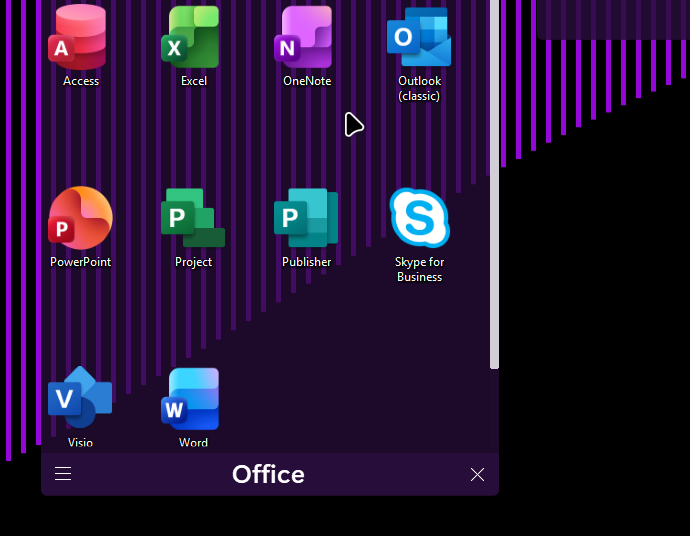
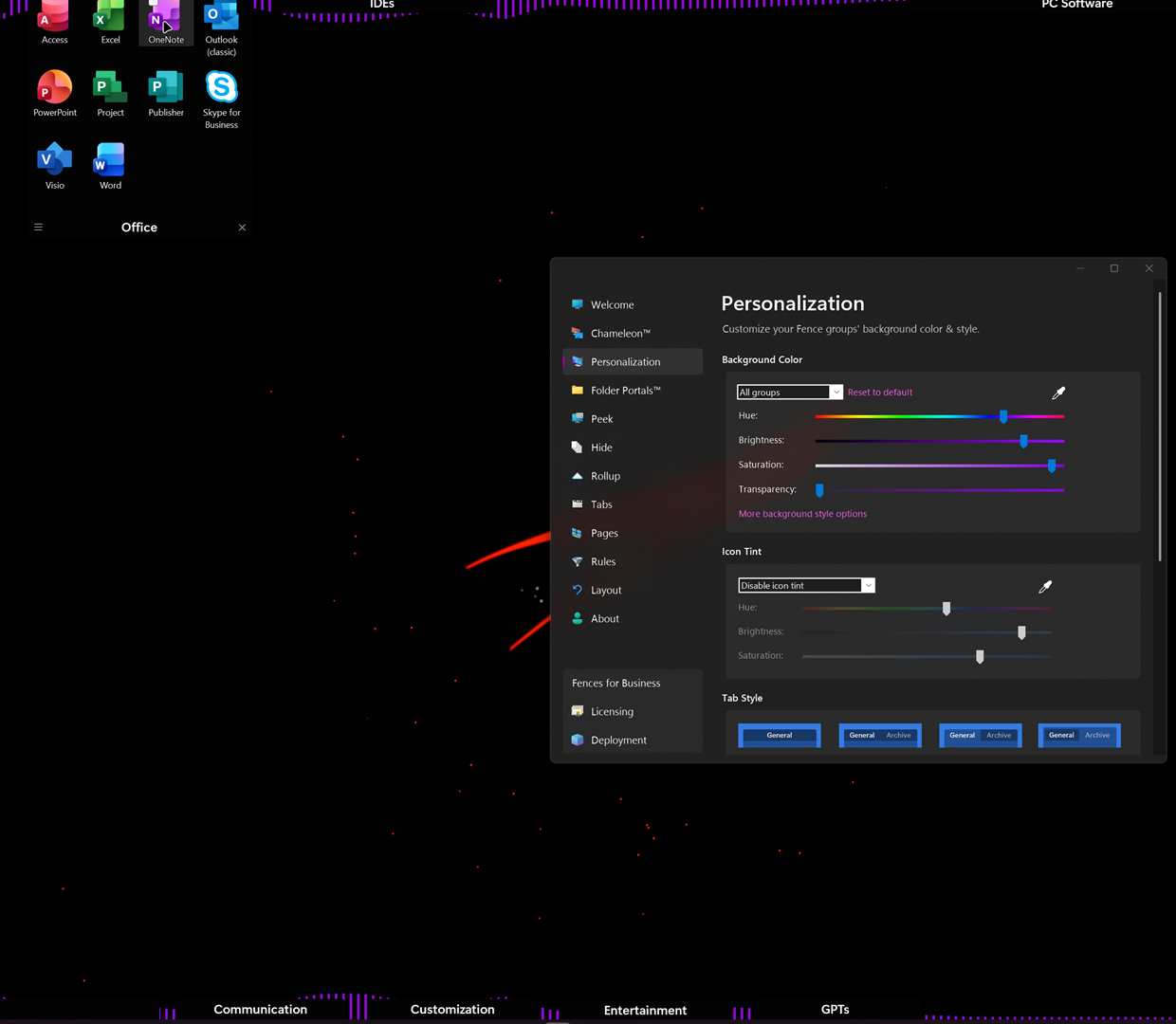
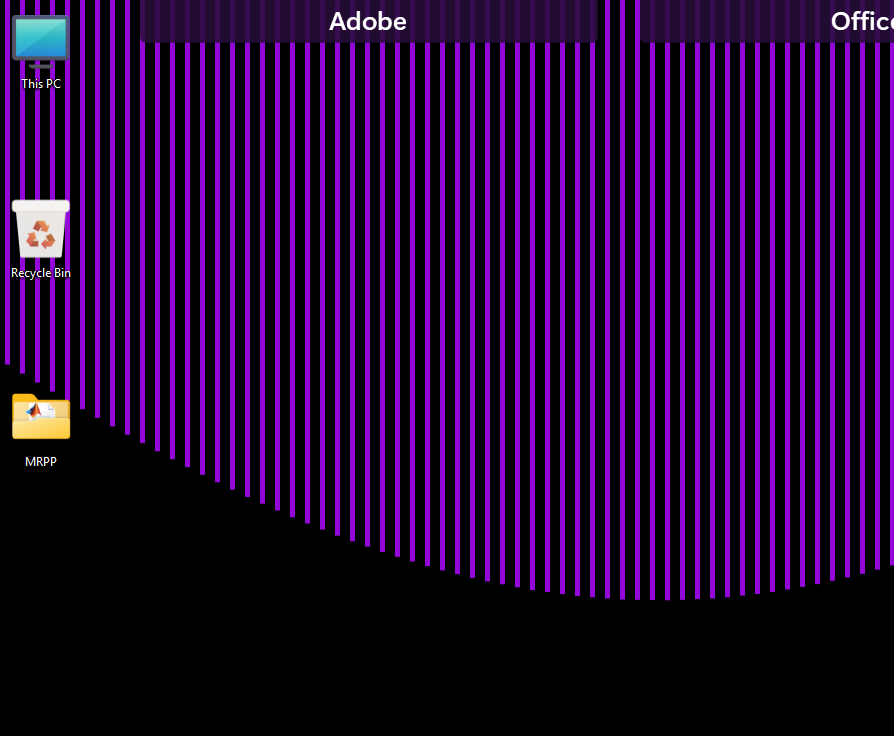
Hi! I want my Fences to have a transparent background (at least, to some extend). But when I move the slider all to the left, the fences just go darker, without becoming transparent (check the photo below, I know it's the dark on dark, but that purple visualizer from Wallpaper Engine should be visible on the Fence, and it isn't, both up and down). I tried with saturation and brightness as well, but the Fence is just getting darker but still solid

On start11, the option for transparency is working as expected, so I don't really know what I'm doing wrong right now... Any help is greatly appreciated!
272 views 3 replies
Reply #1 Top

Hello,
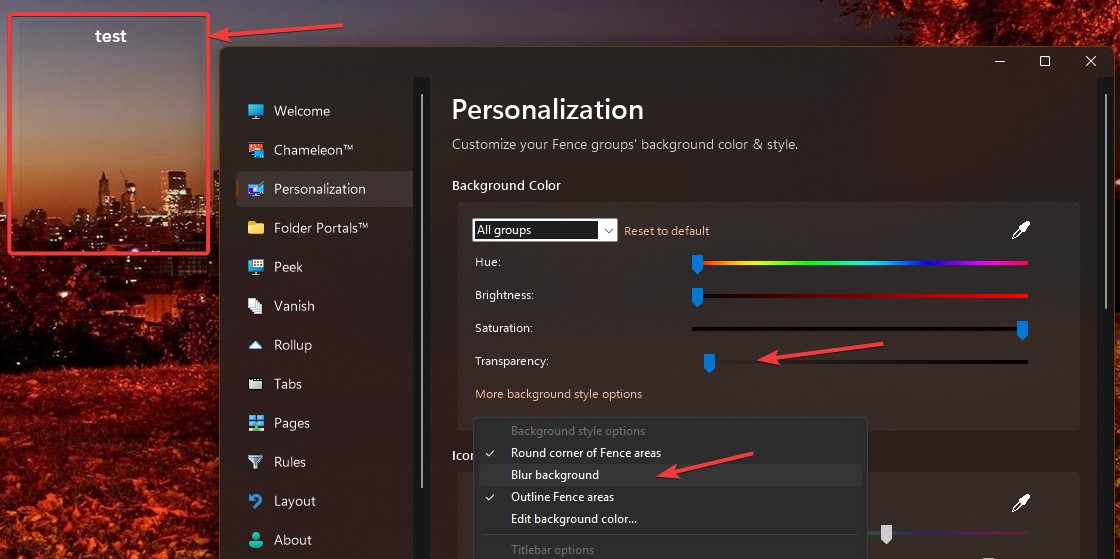
Sorry to hear you are having issues. I assume you're using Fences v6.x. And it is best to set the wallpaper with a lighter color so you can see the differences between the transparent settings on the Fences background.

Note: This should work unless you are using an application like Wallpaper Engine, which may interfere with Fences.

Thank you,
Basj,
Stardock Community Assistant.

Reply #2 Top

Hi, updating to 6.44 and disabling blur fixed the issue! Thanks!

But now I have another problem:
Y


The icons are now very small and distanced? Is there an option to disable it? I updated both Start11 and Fences at the same time, but I don't see why Start11 should be responsible of this...

Reply #3 Top

Have tried rebooting your system right after installing them? And, I don't believe Fences or Start11 do that. Perhaps you can this guide I found online to reset it.


  1. Open Registry Editor: Press Win + R, type regedit, and press Enter.
  2. Navigate to: HKEY_CURRENT_USER\Control Panel\Desktop\WindowMetrics.
  3. Adjust Horizontal Spacing: Double-click on IconSpacing and change the value (default is usually \(-1125\) or \(-1128\)).
  4. Adjust Vertical Spacing: Double-click on IconVerticalSpacing and change the value (default is usually \(-1125\) or \(-1128\)).
    • Note: Using smaller negative numbers (e.g., \(-700\)) makes spacing tighter, while larger negative numbers (e.g., \(-1500\)) increase spacing.
  5. Apply Changes: Close the Registry Editor, then Sign out and sign back in to Windows for the changes to take effect. [1, 2, 3, 4, 5]
Alternative Methods:
  • Winaero Tweaker: Use a third-party app like Winaero Tweaker for an easier graphical interface to manage icon spacing.
  • Icon Size Change: Right-click the desktop, select View, and choose Small, Medium, or Large icons to slightly alter spacing. [1, 2, 3, 4, 5]

Thank you,

Basj,
Stardock Community Assistant