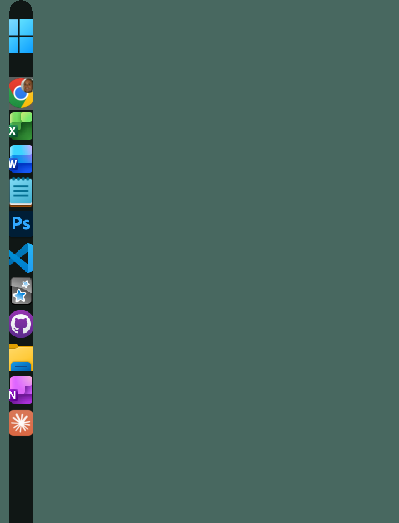
Can we make vertical taskbars wider?

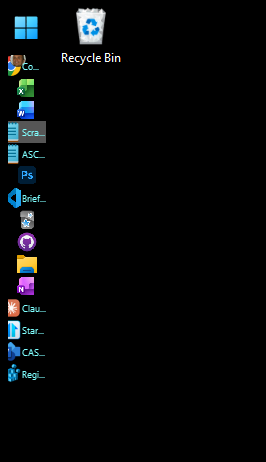
I've selected the 'extra large' option and made my buttons and icons small, but I still see just a few letters of each open file name. I'd really like a wider taskbar so I can read much more of the file names for when I have several different files open in the same app, such as multiple text files. In Windows 10 we could drag it to whatever width we wanted, reconfiguring it to the task at hand. Ideally, it would be nice to get that level of functionality back, but at least the ability to control the width through a setting would be very helpful.
Moved to Start Menu Products area
503 views 4 replies
Reply #1 Top

Hello,
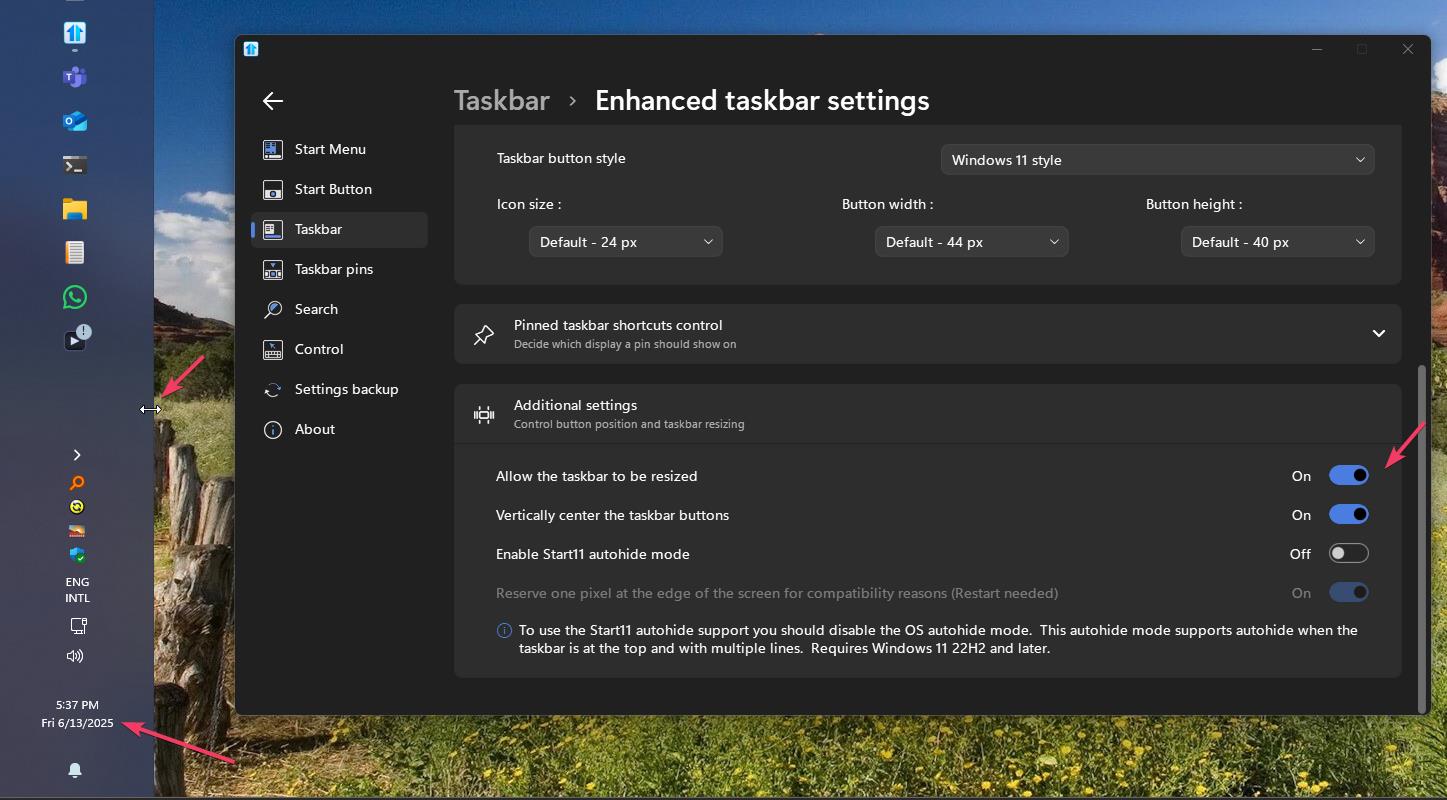
You should able to make it wider. Just turn on "Allow the taskbar to be resized" under Enhanced taskbar settings. Move your mouse cursor at the edge of your taskbar, click and drag to size your wish.


Thank you
Basj,
Stardock Community Assistant.

Reply #2 Top

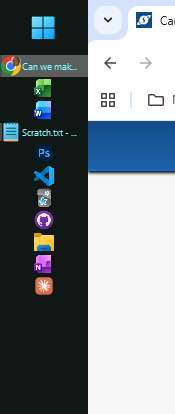
Thanks Basj, this does indeed work, although a little inconsistently. I did already have that option turned on, and I'd been trying to click and drag the edge of the taskbar - my cursor wasn't changing, and the taskbar wasn't resizing. I've just had another go and managed to resize the taskbar on one of my monitors, but the taskbar on the other monitor is still refusing to move. I've changed my desktop background colour to help me see the edge of the taskbar, and restarted the Explorer. I'm still able to resize the taskbar on one monitor, but on the other one, it is thin. 

Monitor 1:                                    Monitor 2:


Reply #3 Top

Strangely, I can not reproduce your issue on my system. Secondary monitor vertical taskbar can be resize accordingly. Perhaps something not properly get install. Please try, uninstall Start11, reboot immediately (important), download latest version available in your account product download page: https://store.stardock.com/myaccount/products. Install it, reboot immediately again. Retest it and report back.

If the issue still there, we need more information on your system.

  1. Windows 11 full version and OS Build numbers. Use Winver.exe to get these numbers.
  2. Start11 full version installed.
  3. Do you have any other application that also manage your taskbar/Start menu/Explorer. Such as StartAllBack, ExplorerPatcher, OpenShell etc.

Thank you,

Basj,
Stardock Community Assistant

Reply #4 Top

Disable the rounded corners option.  This option isn't fully compatible with vertical taskbars and may be stopping you resizing.