Bug Report - Taskbar

Launches the wrong app

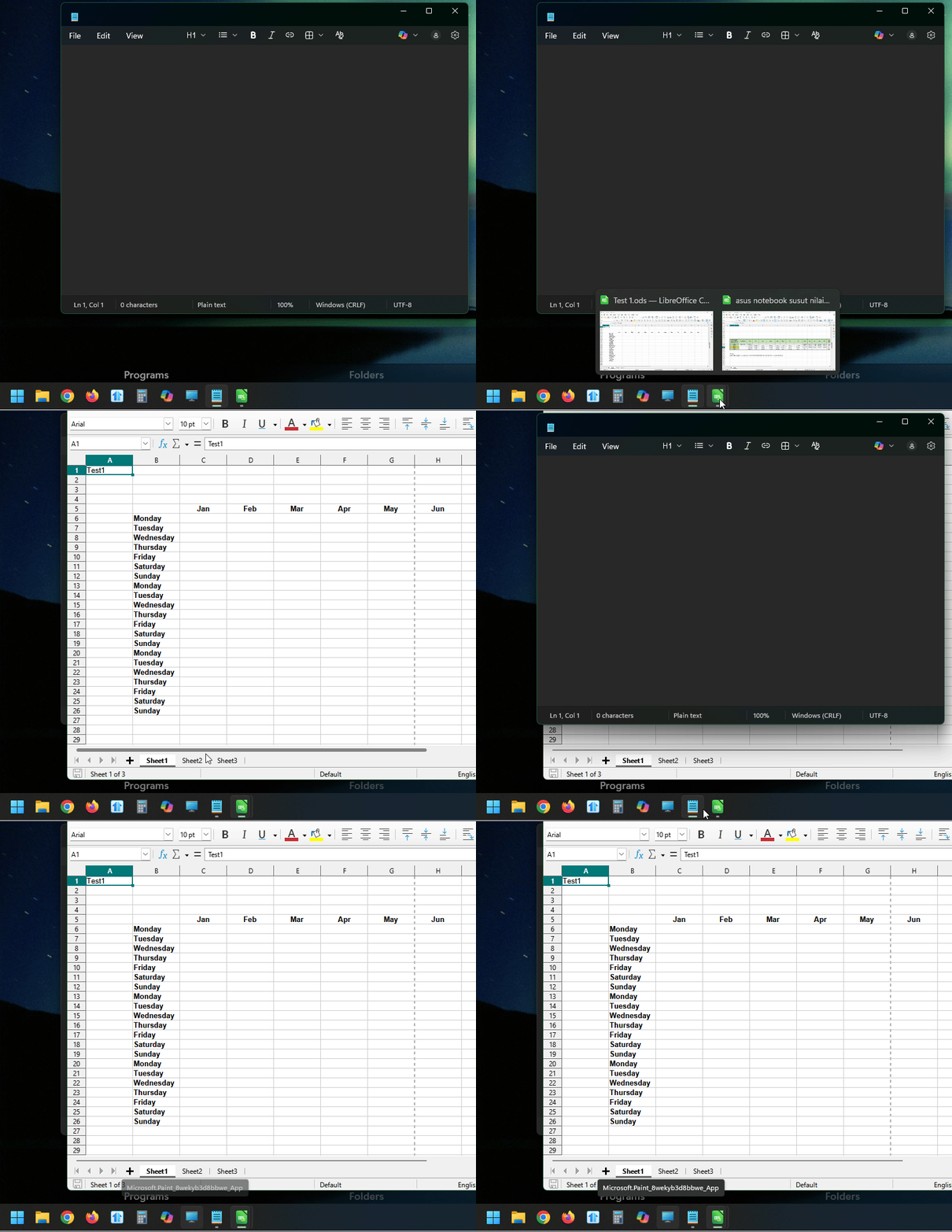
Taskbar above shows Outlook is open with one window. Word is open with two (stacked) windows. OneNote is open with one window.

Now try this: With Outlook or OneNote in the foreground, click on the Word icon in the taskbar.

Normal Windows behavior: it will obligate the user to select WHICH Word window to activate.

In Start11, it will perform a fresh launch of Excel or Access (some app to the right of Word)....WRONG BEHAVIOR.


(Note: we have ruled out icon position mapping, animation, or other settings and narrowed it down to stacked icon behavior error in Start11)


Please fix.
 

1,409 views 20 replies
Reply #1 Top

Hello,
Sorry to hear you are having issues. I can't reproduce your issue on my system. Please try, uninstall Start11, reboot immediately (important), download latest version available in your account product download page: https://store.stardock.com/myaccount/products. Install it, reboot immediately again. Retest it and report back.

If the issue still appear, we need more information.

  1. Windows 10 or 11? Also need its full version and OS Build number. Please use Winver.exe to get these numbers.
  2. Start11 full version number installed.
  3. Do you have any other application running in the background that also change how your taskbar/Start Panel/Explorer work. Application such as DisplayFusion, StartAllBack, ExplorerPatcher etc.

Thank you.
Basj,
Stardock Community Assistant.

Reply #2 Top

I did as you advised, and an additional step that may shed some light. Here's what I did:
1. Backed up my settings
2. Uninstalled (including "remove settings")
3. Reboot
4. Downloaded, installed version from my dashboard
5. Reboot

Problem went away. HOWEVER, when I restored my settings, problem returned, so the culprit is somewhere in my Start11 settings. I really don't want to have to recreate everything...

I recorded the problem condition here:

In addition, here are details requested:

1. Windows 11 Pro Version 25H2 (OS Build 26200.7840)

2. Start11 v2 (2.6)

3. I do not have other taskbar/start apps. I am running Dell DisplayManager (similar to DisplayFusion, I think). However, when I exit/disable, it does not resolve my problem

Thank you!!

Reply #3 Top

Do you have Start11 Enhance task bar turn on or off? If it is off, try turning it on and see if that make any different. Also, while it is on, check you enhance taskbar setting, especially the taskbar button combining setting. Check those and report back.

Thank you,

Basj,
Stardock Community Assistant

Reply #4 Top

Is your windows taskbar without Start1 set to combine items or to not combine them?

Reply #5 Top

basj and Neil: Thank you for your ideas and questions!

"Let Start11 Enhance the Taskbar" is set to on. Within the enhanced taskbar configurations, taskbar button combining is set to "always combine". 

Windows taskbar without Start11 is set to combine items always.

Problem goes away when:

  • "Let Start11 Enhance the Taskbar" is disabled
  • "Let Start11 Enhance the Taskbar" is enabled, and taskbar combining to "never combine"

That leads me to believe that the problem is within Start11 enhanced taskbar button stacking management.


Reply #6 Top

How about, if you enable Start11 Enhance taskbar, never combine taskbar buttons, yet, turn on "Always hide text on buttons regardless of group state".

Thank you,

Basj,
Stardock Community Assistant

Reply #7 Top

That seems to be a miracle cure for Outlook only.

However, other apps icons are now replicated (i.e., unstacked...just without text). Sure, I can pick which document (e.g., with Word below), and random apps no longer launch, but I really want my taskbar buttons stacked.

Curious...given what I reported above, are you now able to recreate the problem?

Reply #8 Top

No, I still can not reproduce your issue on my system. Another question, Is the issue only appear on MS Office product? I asked since I don't have MS Office on my system currently.

Thank you,

Basj,
Stardock Community Assistant

Reply #10 Top

Hello,
I have forwarded your problem/question to Stardock Support Team for their assistance. Please keep an eye on this thread for any updates. We appreciate your feedback and patience. Thank you.

Basj,
Stardock Community Assistant

Reply #11 Top

We need few more information.

  1. Windows Display scale factors 100%, 150%, 200% etc?
  2. Could you create a backup of your setting and share it, so we can look into it.

Thank you,

Basj,
Stardock Community Assistant

Reply #13 Top

Perfect, thank you, please wait for respond by Support or Dev team.

Thank you,

Basj,
Stardock Community Assistant

Reply #14 Top

Hello hy59,

Thanks for posting.  I have not been able to reproduce this while following your exact steps from your backup file.  I have same version of Windows 11 (25H2, build 26200.7840). 

What seems likely, is that a Windows setting on your machine or other background process/program is causing a difference here.  In such cases, Windows Sandbox can be a great testing tool to help isolate if this would occur in a more default environment. 

The link below includes guidance for setting up and testing in Sandbox:

https://support.stardock.com/space/SHC/1416855562/Testing+Start+in+Sandbox

Please let us know if this helps.

Best regards,

Adam McGuinness
Stardock Support Specialist

Reply #15 Top

I was able to recreate the problem immediately with these steps:

  1. Install Start11 latest version on a fresh Sandbox
  2. Configure Start11 as follows
    • Taskbar
      • Let Start11 enhance the taskbar (set ON)
      • Configure enhanced taskbar
        • Taskbar button combining: (set to "Always combine the taskbar buttons")
      • Restart explorer
  3. Arrange taskbar as follows, left to right
    • Microsoft Edge at left-most position (we are using Edge to open two stacked windows)
    • File Explorer
    • Settings
  4. Open two separate instances of Microsoft Edge, such that there are two stacked windows. It should look like this:
  5. Click in open desktop area (purpose: take focus off current instance of Microsoft Edge)
  6. Click on Microsoft Edge icon in the taskbar
  7. Result: File Explorer opens up

I did not make any other configuration changes. I did not load/restore any saved configuration file. The configuration I did is exclusively what is outlined above.

Let me know if you need a video of the entire sequence, from installation of Start11 on a blank sandbox to error condition.

Reply #16 Top

Hi hy59,

Following your steps is not reproducing this for me.  File Explorer only opens if I click File Explorer on the taskbar.  Clicking Edge on the taskbar icon (with the two separate instances/windows) merely makes the Edge preview windows animate. This all seems to be the normal expected behavior. 

Would like to know:

  • Does this happen for you every single time you click Edge's pinned taskbar icon, or only sometimes? 
  • Can you attach the backup file of your configuration where this reproduces? (Can be saved from the 'Settings backup' tab).
  • As you suggested, a video of the entire sequence from start to finish (including your process/order of pinning and arranging your taskbar), and showing the entire Sandbox, could also very well be helpful.

Best regards,

Adam McGuinness
Stardock Support Specialist

Reply #17 Top

This happens every single time these conditions exist:

  1. An app running with multiple instances. In this case, we were using Edge because it was convenient in the sandbox environment.
  2. That app has other apps (1, 2, or more) positioned to the right of it. For example, IF Edge was positioned on the far right of the taskbar, the error condition would NOT occur.
  3. Start11 has enhanced taskbar on
  4. Enhanced taskbar settings have "always stacked" icons

Here is a video of the complete recreation in sandbox.

I don't know how to attach a file in this conversation, but here is a link that should work -- ErrorConditionSettings.S11Backup

Reply #18 Top

Hi hy59,

Thank you for providing the conditions/video/backup file for the issue.  This certainly helps clarify what you're experiencing.  

We have this all logged for review:

Internal Ref: ODNT-12105

Thanks again and best regards,

Adam McGuinness
Stardock Support Specialist

Reply #19 Top

Hello again,

This is now addressed in the latest beta release for the software. 

For details on downloading the beta, listed changes, and feedback, please see:

https://forums.stardock.com/541012/start11-27-beta-feedback

Thanks again and best regards,

Adam McGuinness
Stardock Support Specialist


