Fences 6.44 Beta Release Feedback

With the Fences 6.44 beta release, we are creating this thread so that users can report any observed issues.  

Obtaining Object Desktop Insider Builds

Object Desktop Manager

Object Desktop members can get beta and Insider builds from within Object Desktop Manager with 'Enable Object Desktop Insider builds' enabled:

image-20240219-210025.png

Stardock Download Page

Or via their download page in the ‘Object Desktop Insider’ section

image-20240219-213743.png

Obtaining Beta Releases

Stardock.com

If a beta was released, Object Desktop Members would see it in the ‘Object Desktop’ section.

Individual purchases would see it on their registration of the product under their download page.

image-20240219-214050.png

Steam

  • Right-click the Product in Steam

  • Properties

  • Betas

  • Select the beta branch at the top right (there is no password)

Example

https://cdn.stardock.us/support/uploads/steamwebhelper_2024-02-19_17-44-35.png

Reporting an issue

Please include the following for anything found:

  • Exact Windows version \ build (winver.exe)

  • Detailed steps to recreate the issue seen

  • Screenshots and videos are very helpful.  Videos can be uploaded to a cloud drive service (GoogleDrive, DropBox, OneDrive, YouTube), with a shared link included in your post.  Images can be copied and pasted directly into a post.

  • If there are specific apps that the app does not work (well) with, please note what apps and their exact versions.  If any app is not common, a link to a trial version would be appreciated.

Thank you for your interest and any time you put into making Fences 6 a better product.

6,243 views 26 replies
Reply #1 Top

Fences 6.46 Beta Changelog

4/11/2026

Version

6.4.6.1 (6.46)

Changes

  • Critical Fixes

    • Fixed crashing issue affecting some users with v6.44.

  • QOL Improvements

    • Fine-tuning improvements to multi-mon handling system, ensuring icons & groups stay put as you switch between different monitor configurations.

    • Improved startup responsiveness for slow loading network-drive based Folder Portals.

    • Improved accessibility of titlebar style options in Customization pane.

    • Improved ease of undocking tabs from a tab group.

    • Improved DPI support up to 400% and improved 250%-400% visuals.

    • Improved configuration of icon tinting.

    • Added option to hide folder icon on Folder Portal titlebars.

    • Added menu item for adjusting spacing.

  • Fixes 

    • Resolves configuration window conflict when removing Peek icon from the taskbar

    • Fixed: Peek would show a black background when “blur background” was disabled.

    • Fixed: Settings dialog might freeze when disabling "Show in Taskbar" in Peek tab.

    • Fixed: Custom per-group title fonts & title font colors would not apply to tabs.

    • Fixed: Original folder title is now not overwritten in registry when navigating within Folder Portals.

    • Fixed: Issue with scrollbar reappearing after undocking a tab.

    • Fixed: a couple minor issues with the previous update [internal update]

    • Fixed: Scrollbars in "List" style folder portals would appear upon mouseover of rolled up groups, even when "click to toggle rollup" is enabled. 

    • Fixed: Resolved issue where if all icons & groups were located on secondary monitor, under certain circumstances they could revert to the primary monitor after monitor went to sleep

    • Fixed: Resolved issue with inconsistent minimum size setting with multi-monitors.

    • Fixed: Snapping issue related to multi-mon

    • Fixed: Issue where group orderings could shuffle during multi-mon change.

    • Fixed: Issue where loose icons could change monitors during multi-mon change.

  • Other

    • Updated localization strings.

    • Obsolete "Layout auto-adjustment" panel is now hidden for users who haven't adjusted this setting.

Reply #2 Top

Known issues

While we appreciate all feedback, please remember that we offer no official support for beta \ preview \ developer channel versions of Windows. If you report issues while in any of those early release channels, you should not expect them to be addressed unless it still exists in a retail version of Windows.

  • tbd
Reply #3 Top

***Reserved***

Reply #4 Top

All,

The beta for Fences has been updated to 6.4.2.2

For details, please see:

https://forums.stardock.com/540891/get;3988830

As always, thank you for your time, feedback, and support. 

Sean Drohan
Product Lifecycle Manager


Reply #5 Top

I am on Windows 11 25H2 Build 26200.8037, with Fences 6.42.

I have my laptop monitor at 2560x1600 set at scale 125%.

My secondary monitor (the main display) is 2560x1440 at 100% scaling.

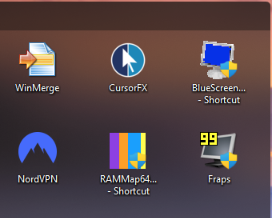
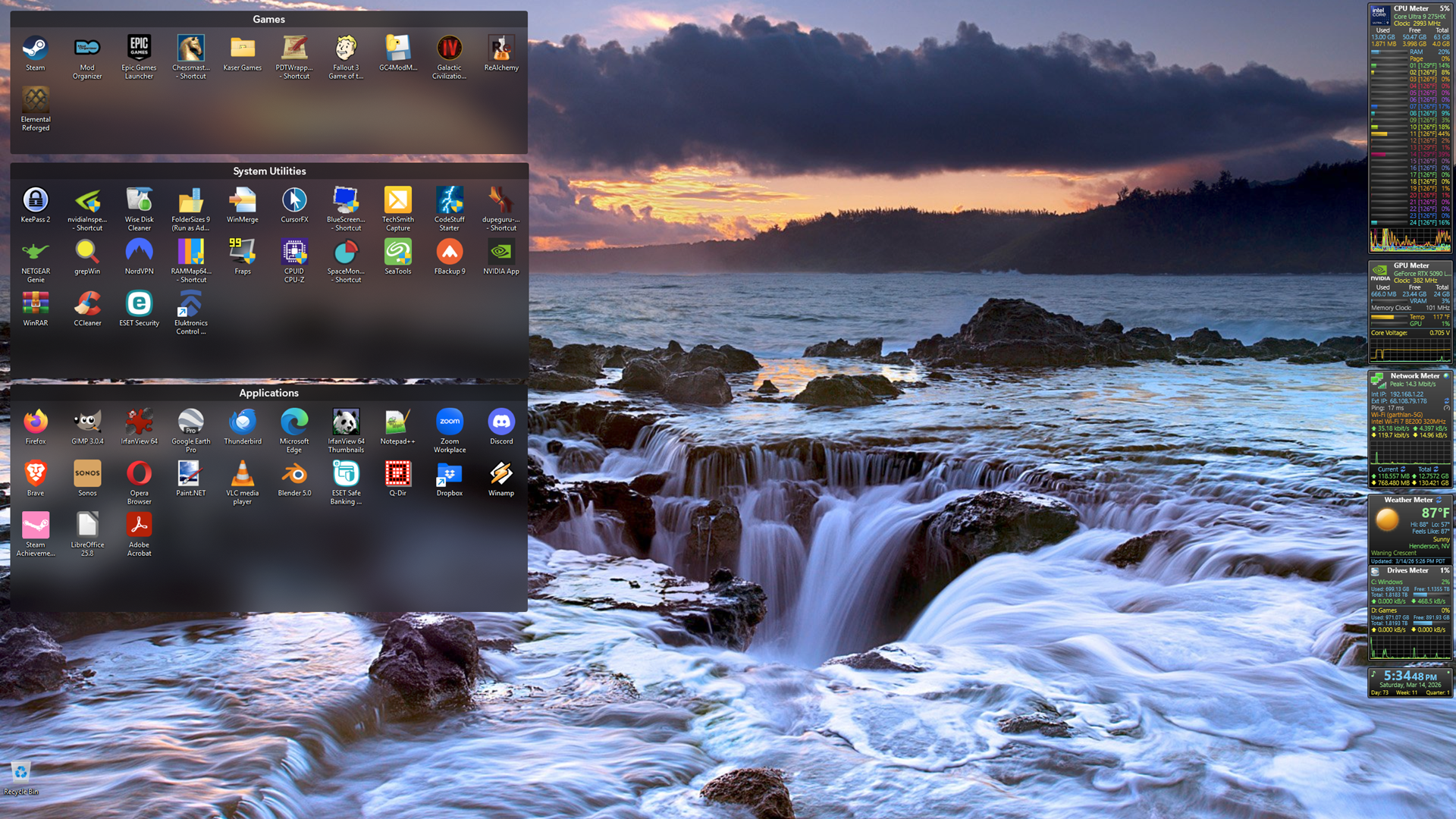
When my Fences are on the laptop display they look normal, like this:

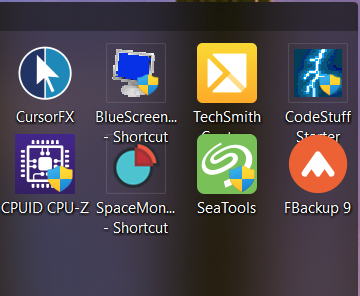
When they are on my secondary monitor the icons and text are larger and overlap the text of other icons:

 It's almost as if Fences has the scaling of the two monitors reversed. Is this a bug, or is there some setting in Fences I haven't been able to find that will space out the icons so they don't overlap?

Reply #6 Top

Quoting Publius, reply 5

I am on Windows 11 25H2 Build 26200.8037, with Fences 6.42.

I have my laptop monitor at 2560x1600 set at scale 125%.

My secondary monitor (the main display) is 2560x1440 at 100% scaling.

When my Fences are on the laptop display they look normal, like this:


When they are on my secondary monitor the icons and text are larger and overlap the text of other icons:


 It's almost as if Fences has the scaling of the two monitors reversed. Is this a bug, or is there some setting in Fences I haven't been able to find that will space out the icons so they don't overlap?

We have tried to reproduce this but thus far have not.  If you switch the monitors (physically), do you see the same thing?

If you change the scaling or resolution on the one with the effect, does it change anything?

If you restart Windows explorer does it reproduce?

Sean Drohan
Stardock Product Lifecycle Manager

Reply #7 Top

Hi Publius, thanks for posting. Is this something new you're seeing with this build specifically, upon upgrading?

This type of thing can happen sometimes during awkward DPI changes and is generally driven by Explorer not Fences itself. Fences picks up spacing info from Explorer. If the explorer process restarts (without reboot, say, during an upgrade) after there's been a DPI change is in particular when this type of thing can occurr. Please let us know if logging off and on helps resolve.

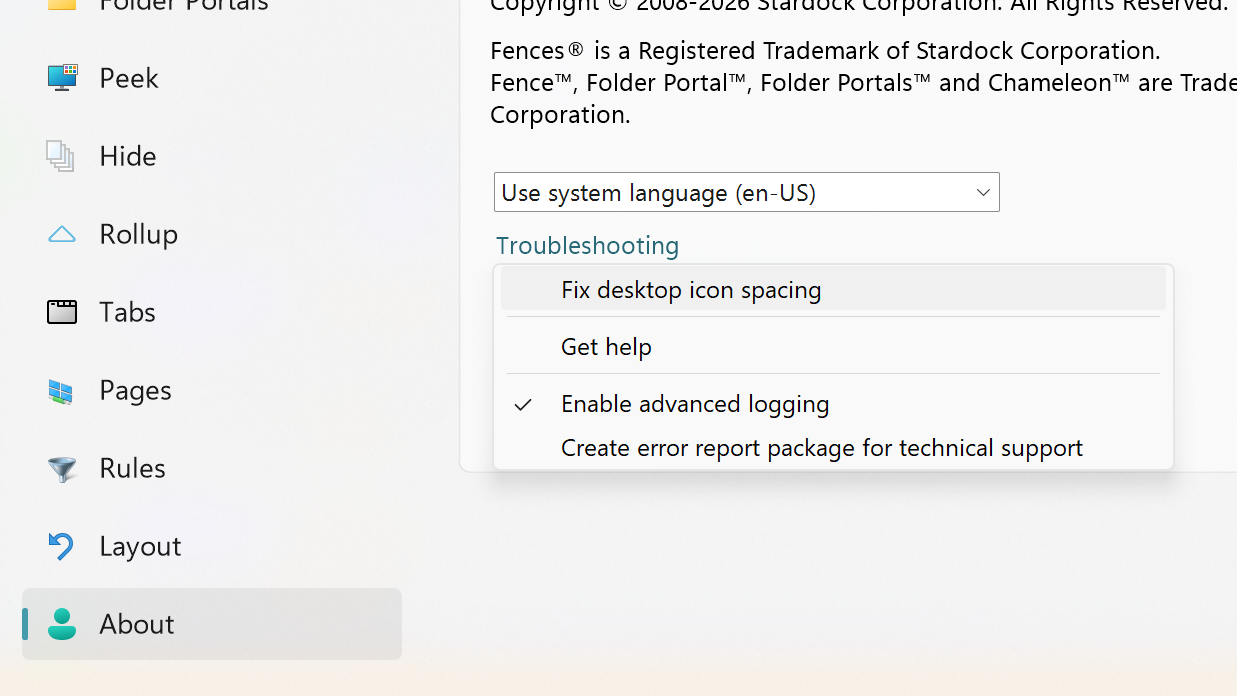
Similar, while I sense rebooting will resolve this issue, if willing, please try and give this "Fix desktop icon spacing" a try too.

Let us know please, thank you

+1 Loading…
Reply #8 Top

I first saw this problem on Fences 6.40. Still seeing it after installing 6.42. 

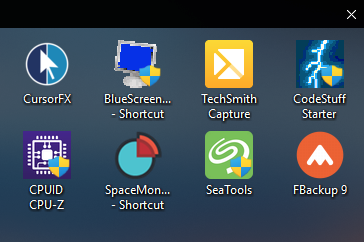
If I change the scaling on my laptop (which is NOT where the Fences are) from 125% to 100%, the icons in the fences on the other monitor shrink and look like this:

And interestingly, during boot, if I watch closely I can see the icons first come up looking like that, and then quickly change to the larger ones. 

When I set the laptop scaling back to 125%, the icons in the fences on the other monitor get larger and overlap as in the screenshot in my first post.

I will try the Fix Desktop Icon Spacing setting, but since that requires me to logoff/logon I'll send this post first.


Reply #9 Top

I applied the Fix Desktop Icon Spacing, logged out and then back in, and the icons shrank and appeared as they should.

However, after rebooting, they are back to the larger, overlapping icons, so that isn't a permanent fix.

Reply #10 Top

Hmm.

I'm not certain this will give the information we need but it may, can you check the box for Enable Advanced Logging, reboot and then move the groups around? Will have to let the team know to see if there's more debug information we can add.

Reply #11 Top

Also curious how it all behaves if you uncheck the box "Enable Fences" at the very bottom of the welcome panel, and enable auto arrange on the desktop

Reply #12 Top

Quoting Dr, reply 11

Also curious how it all behaves if you uncheck the box "Enable Fences" at the very bottom of the welcome panel, and enable auto arrange on the desktop

If I uncheck Enable Fences the icons remain at their larger size but are no longer overlapping. Turning on Auto Arrange Leaves them that way.

Reply #13 Top

Quoting Dr, reply 10

Hmm.

I'm not certain this will give the information we need but it may, can you check the box for Enable Advanced Logging, reboot and then move the groups around? Will have to let the team know to see if there's more debug information we can add.

I checked that box, rebooted, and moved my fences from the secondary monitor to the laptop, and then back again. Is there a log file someplace I should find and send to you?

Reply #14 Top

Yup, please use the option "Create error report" from that same menu, and it'll give an option to upload.

We've been unable to reproduce here so far with a variety of configurations, so we'll have to figure out next steps, but at any rate hopefully the log can give a hint. Thank you

Reply #15 Top

Ok, the file should be uploaded.

Reply #16 Top

Thanks for the added detail and for the log.


On first pass, regretfully, everything is looking correct in the logs, and similarly, have reproduced the scenario exactly with the primary 100%, secondary 125% and not seeing anything like this.

2026-03-14 00:14:46,864 - DPI Changed Applications, 96 -> 120
2026-03-14 00:14:46,864 - Minimum size changed Applications, 91x93 -> 114x117
2026-03-14 00:14:46,883 - ReadDesktopSpacing 100/100/100 iconSize(48) desktopSpacingRaw(75,98) desktopSpacingAdj(75,98) sysMetricsRaw(75,75) sysMetricsAdj(75,75) lvSpacingRaw(91,91) lvSpacingAdj(91,91) shim(0)

vs test machine:

[20176] DPI Changed DPITest, 96 -> 120
[20176] Minimum size changed DPITest, 75x101 -> 94x127
[20176] ReadDesktopSpacing 100/100/100 iconSize(48) desktopSpacingRaw(75,99) desktopSpacingAdj(75,99) sysMetricsRaw(75,75) sysMetricsAdj(75,75) lvSpacingRaw(91,91) lvSpacingAdj(75,99) shim(0)


So, nearly identical.

Indeed, I can generate this smashed-together look if I half pull a group from the one monitor to the other, but once it's over half way, it changes its spacing, and it appears to be showing this in the log as well.

Is there no change in spacing, as you move them between the monitors?


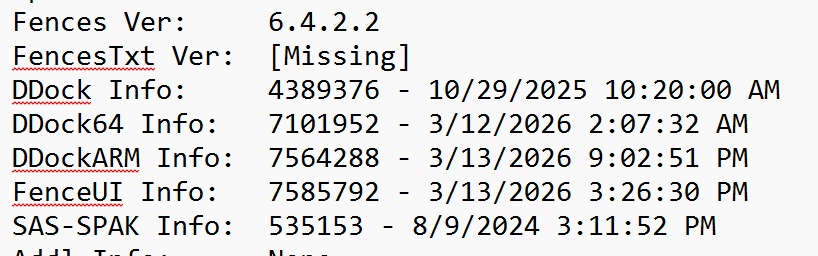
I wouldn't think this would have anything to do with anything, but it's also worth noting that a few files are showing up as not installed correctly

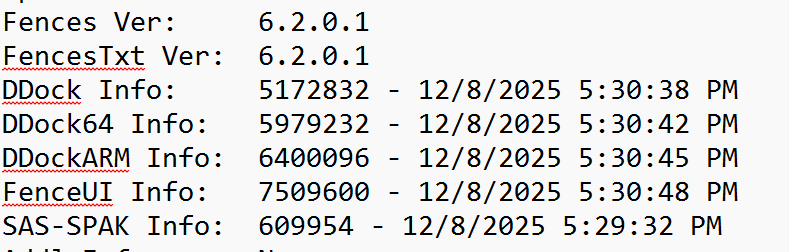
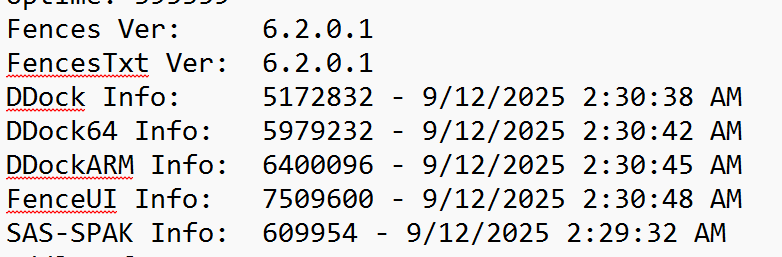
You're on a 64 bit system, so it shouldn't matter that DesktopDock.dll (32bit) is old, but FencesVersion.txt is missing also. Again the key file are up to date here, so it shouldn't matter. But this is odd. The "SAS-SPAK" file being so old, likewise, is concerning.

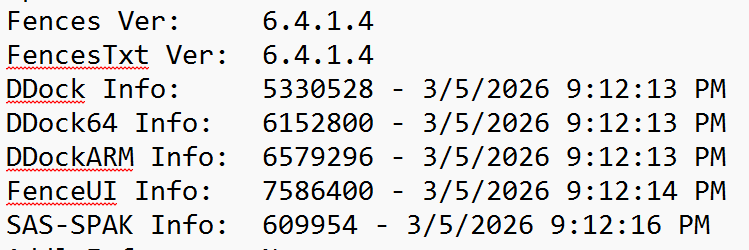
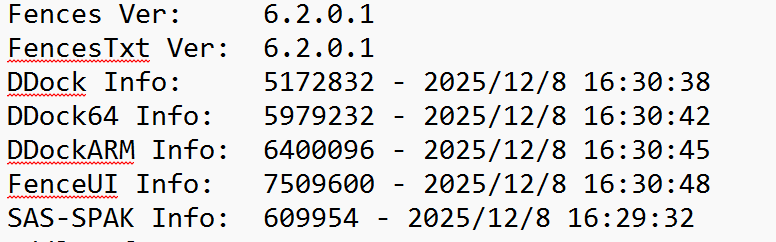
These files SHOULD look like this, which I'm pasting in from other user logs we've received:


So yes as much as it doesn't seem involved, this gives me pause. I don't think a reinstall is going to matter, but, and uninstall and reinstall might be warranted. I've looked through a dozen+ logs just now and haven't seen anything like this in them.


If you're able to do a screen recording of any kind, via phone, or etc etc, again it won't exactly help per se, but, this is confusing so just trying to get clues.


Reply #17 Top

I uninstalled Fences 6, rebooted, reinstalled the Fences 6.42 Beta, rebooted, and the problem came back.

I once again changed the display settings on my laptop monitor to 100% scaling, and the icons on the external monitor shrank and separated correctly. I tried rebooting and then changing the laptop back to 125%, and the problem came back.

I do now have a FencesVersion.txt file in the Program Files (x86)\Stardock\Fences folder, and its contents show 6.4.2.2.

I'll see what I can do with it tomorrow. Thanks for your help.

Reply #18 Top

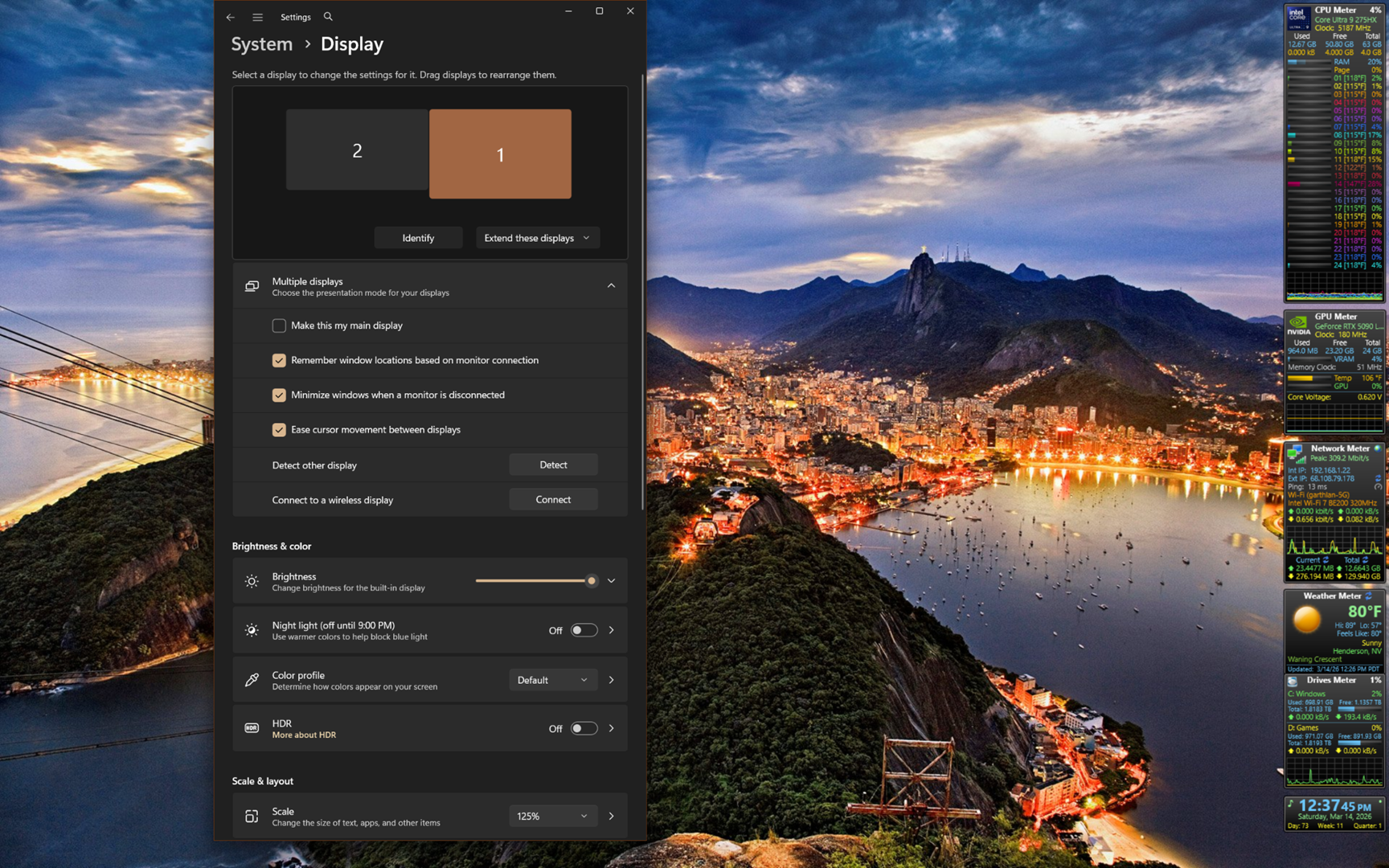
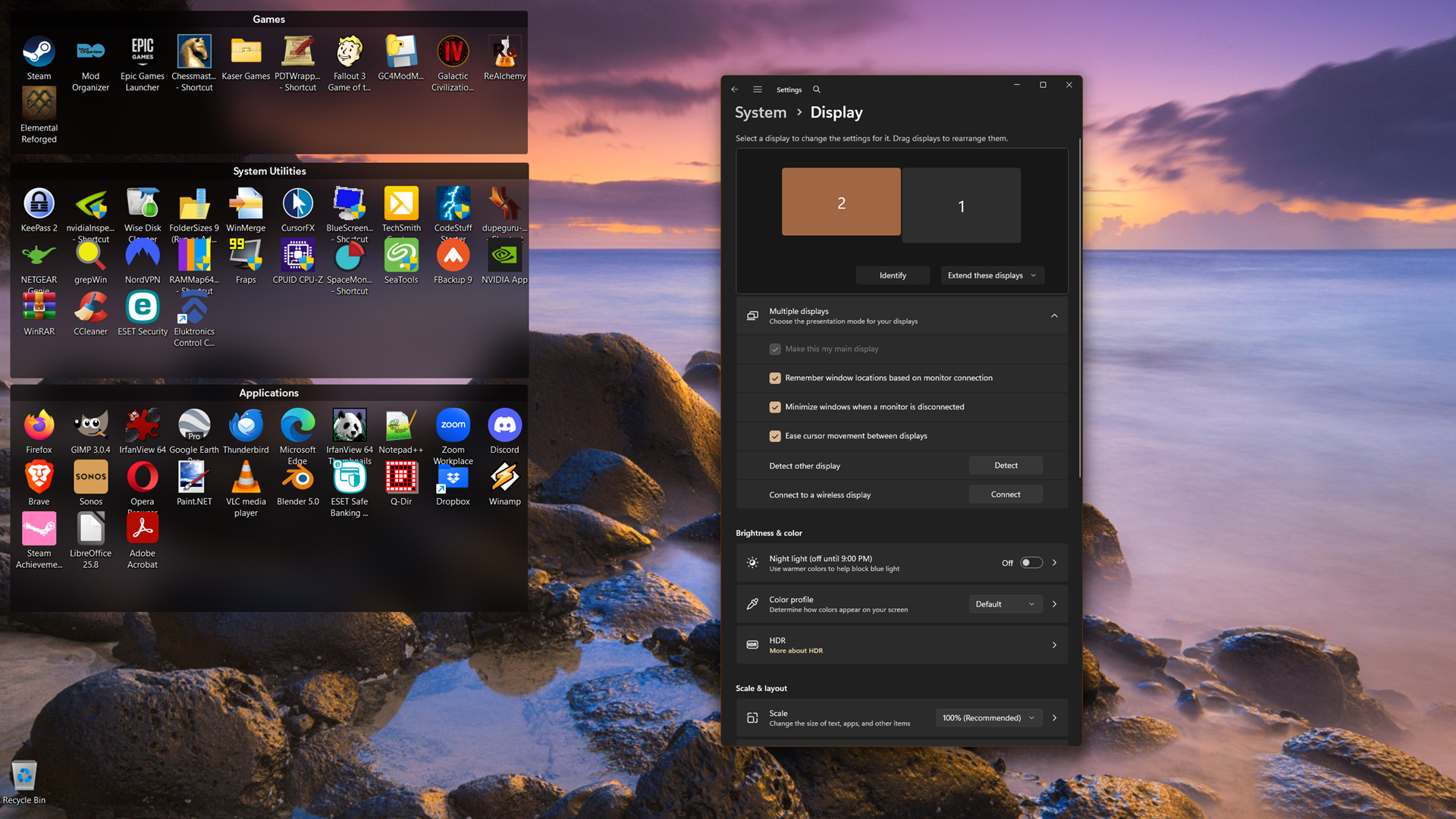
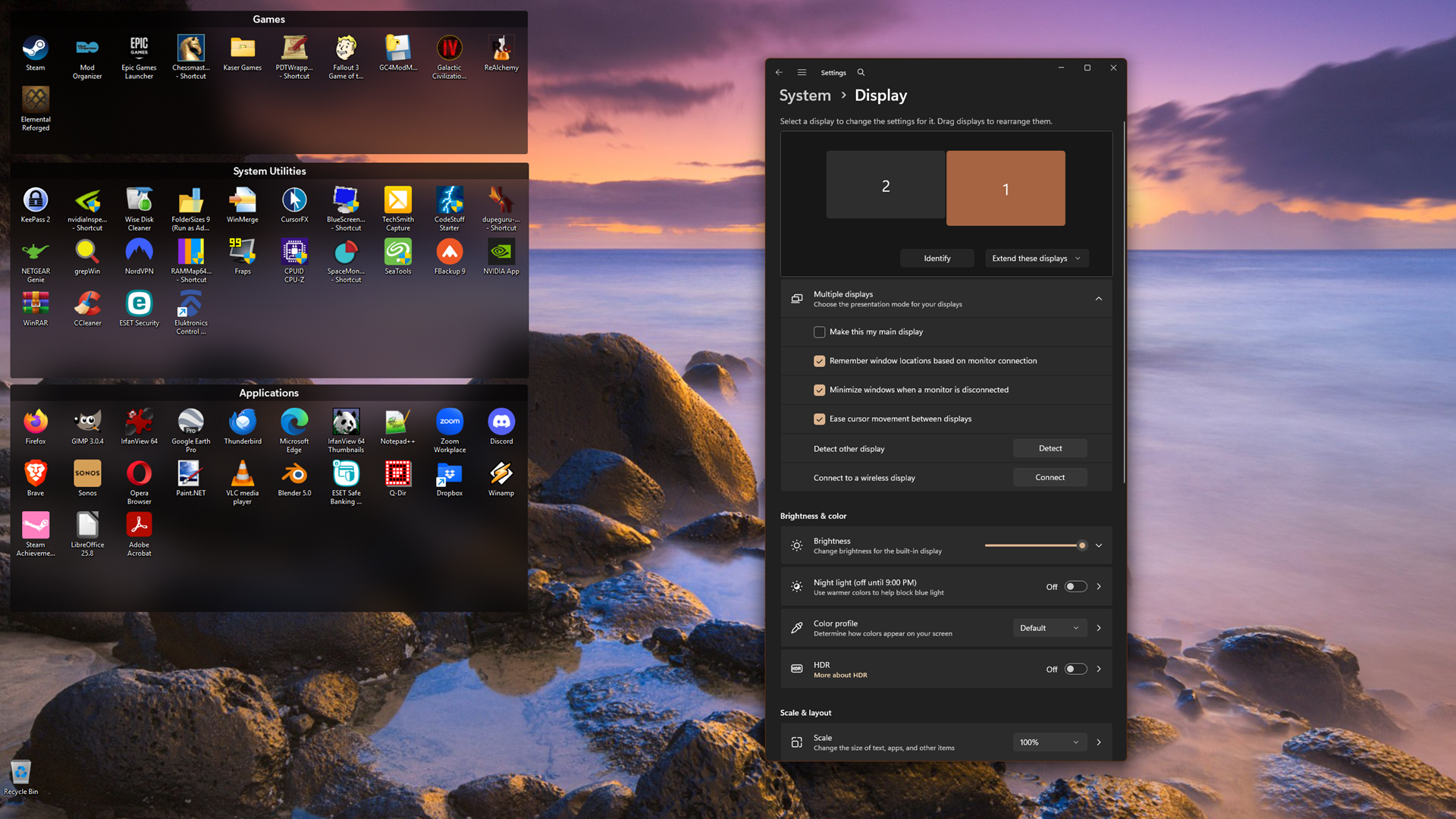
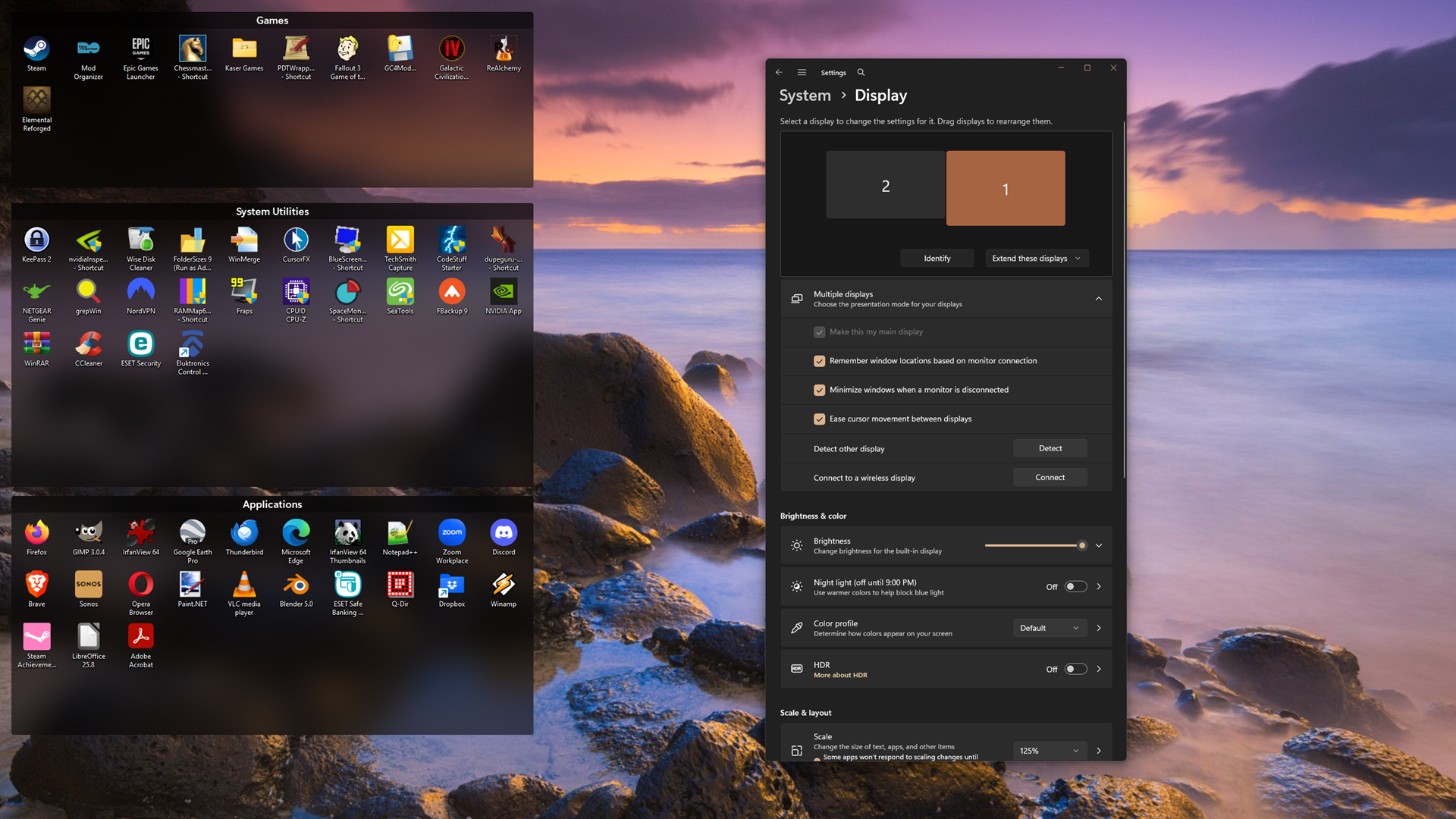
Here are some more screenshots showing my display settings. The first one is my laptop monitor, showing that I have two displays, with the desktop extended across them, the laptop is NOT my main display, and is scaled at 125%.

The second is my external monitor, which is set as the main display, 100% scaling, with the Fences.

The third shows the external monitor if I set the scaling on the laptop to 100%.

And the fourth shows what happened when I set the laptop monitor back to 125% but change the setting to make the laptop my main display. When I make it my main display, the fences are moved to it, and when I move them back to the external monitor they look like this:


Reply #19 Top

Follow-ups:

  • Any difference between if you boot up and initially log in with monitor attached, verses unattached at boot and plug in after the fact?
  • When unattached, the laptop is at 125% correct. Both 125% with and without monitor attached? (Same resolution etc?)
  • It sounds like all your icons and groups are on the primary monitor?
  • Is there any switching that during boot up? I’m guessing no as the secondary monitor is already attached?
  • So therefore, rate from boot up, the icons are appearing scrunched up on your secondary?

As you're saying it sounds like progression is:

1- bootup, 100% external primary, 125% laptop. icons scrunched on external primary i.e. broken
2- if you change laptop to 100%, icons de-scratch on the external primary i.e. looks ok
3- if you change your laptop to 125% and set it to your primary, then manually move things back to your secondary, things are ok then too. 

We’ve been working to reproduce this in every scenario, but I’ve been unable to reproduce the issue (everything working as expected) so again, looking for hints

Reply #20 Top

1) Yes, there is a difference. If I boot with the monitor unattached, and then plug it in, everything (fences and widgets) moves to it, and the icons look ok:

2) Yes, when unattached the laptop is at 125% (both unattached and attached).

3) Yes, all my fences and icons are on the primary monitor.

4) On boot there's some flickering of the icons, but I'll have to pay more attention to tell you what happens. I'll do that and post again.

Your summation of the progression is correct.

Reply #21 Top

I rebooted with the external monitor attached to watch what happened with the icon size during boot, and now they are coming up sized correctly ... i.e. the problem has at least temporarily gone away. I have no idea why booting with the monitor not attached and then attaching it would fix things. Finding that hard to believe, I rebooted yet again, and the icons stayed the correct size. 

So I hope the problem is now fixed and was just some weirdness with Windows 11. I will post here again if it comes back.

Meanwhile, thank you for all your help.

Reply #22 Top

Quoting Publius, reply 21

I have no idea why booting with the monitor not attached and then attaching it would fix things. Finding that hard to believe, I rebooted yet again, and the icons stayed the correct size. 

Quoting sdRohan, reply 6

If you switch the monitors (physically), do you see the same thing?

Quoting Publius, reply 21

Meanwhile, thank you for all your help.

You are most welcome, thank you for the report. 

Sean Drohan
Stardock Product Lifecycle Manager

Reply #23 Top

Aye! Yes my follow up question was going to be whether or not unplugging and then re-plugging the monitor also helped, similar to booting up with it unplugged. but it sounds like somehow the change has stuck?

This is both great news and leaves me wondering what happened, but, if it comes back, please let us know. Clearly seems to be a timing issue of some kind, but it may or may not be related to us.


Thanks again and glad it worked out 

Reply #24 Top

So far it has stuck through 2 restarts and one power off/power on. If it comes back I'll post here. Again, thanks for your help.

+1 Loading…
Reply #25 Top

All,

The Fences beta has been updated to 6.44.  For details, please see:

https://forums.stardock.com/540891/get;3988830

As always, thank you for your time, feedback, and support.

Sean Drohan
Product Lifecycle Manager