Disable icon tint

For some time now, my app icons and folders have been automatically adopting this Fence color , even though I have 'Disable icon tint' enabled in my Fences settings. I do not want the icons and folders to take on this themed/fancy color. I prefer them to keep their original appearance.

I am running the latest version of Stardock Fences: 6.20.


What can I do to completely prevent this tinting behavior and force the icons/folders to stay in their default colors? Thank you for your help!

2,461 views 9 replies
Reply #1 Top

Hello,
Sorry to hear you are having issues. Need few more details.

  1. Windows 11 full version and OS Build number. Please use Winver.exe.
  2. Post some screenshot showing us your issue.

Thank you,
Basj,
Stardock Community Assistant.

Reply #3 Top

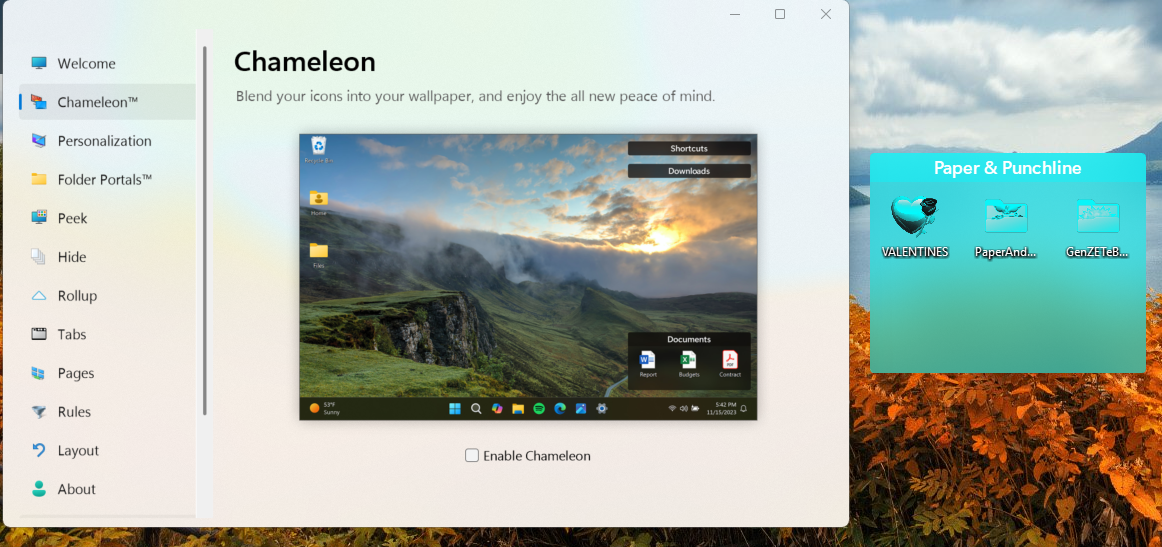
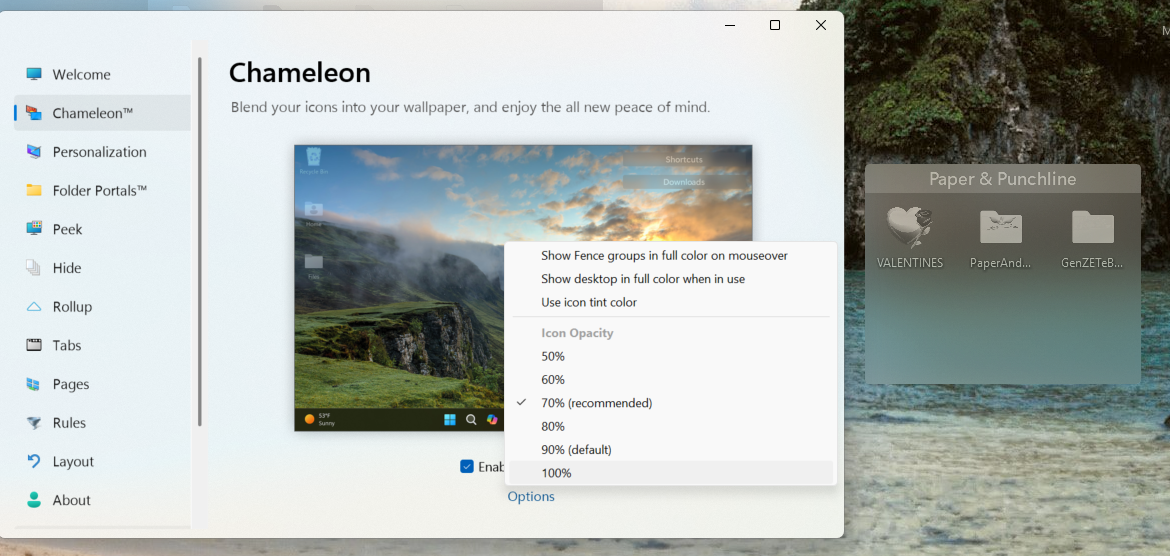
Try looking into your "Chameleon" setting, do you have it turn on? If so, try turn it off and see if it help. Try it and report back.

Thank you,

Basj,
Stardock Community Assistant

Reply #5 Top

That is strange. Please try, uninstall Fences, reboot immediately (important), download latest version available in your account product download page: https://store.stardock.com/myaccount/products.  Install it, reboot immediately again. Retest it and report back.

If the issue still appear. Need to know this is Windows 10 or 11? Also need its full version and OS build number. Use Winver.exe to get these numbers.

Thank you,

Basj,
Stardock Community Assistant

Reply #6 Top

Hi Ania73, can you please upload your settings, and our team can take a look? You can use About -> Troubleshooting -> Upload error report.

I hope we can get this answered for you quickly.

Reply #7 Top

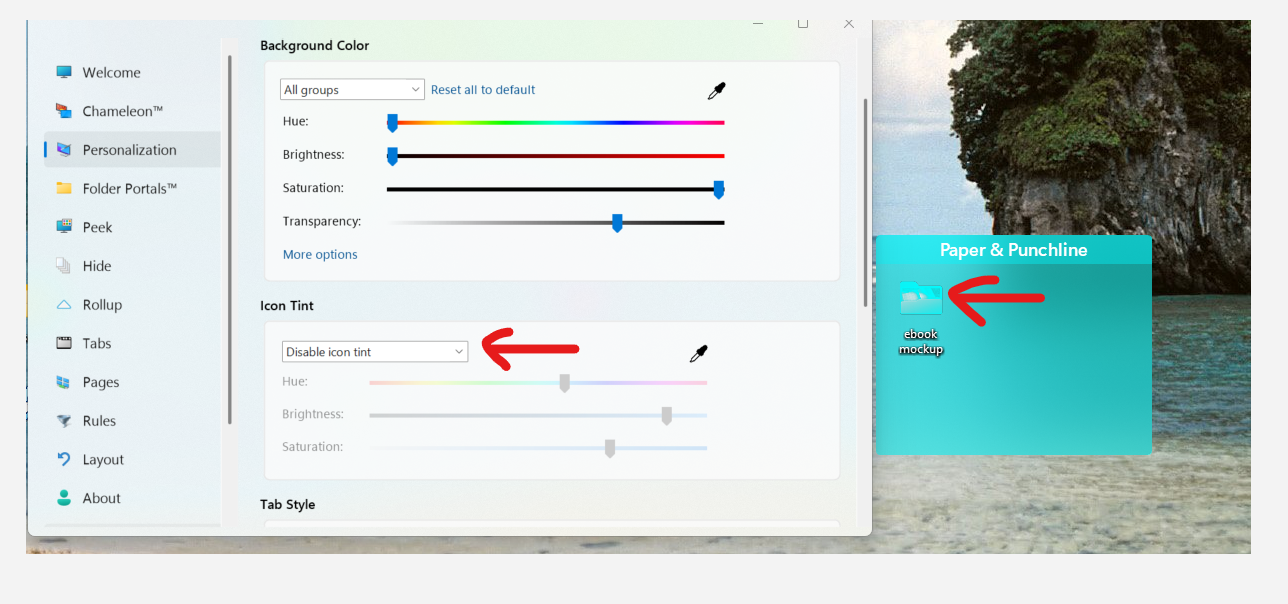
From the looks of your screenshot by the way, it seems like you have color settings set for that specific group: "Paper & Punchline". I say this as the color showing in that picker does not match the color of that group.

You can turn off tint by selecting "Paper & Punchline" from the dropdown that currently says "All groups", and disabling icon tint from there. 


+1 Loading…
Reply #9 Top

For some time now, my app icons and folders have been automatically adopting this Fence color , even though I have 'Disable icon tint' enabled in my Fences settings. I do not want the icons and folders simple logo maker to take on this themed/fancy color. I prefer them to keep their original appearance.
I am running the latest version of Stardock Fences: 6.20.
What can I do to completely prevent this tinting behavior and force the icons/folders to stay in their default colors? Thank you for your help!

✅ 1. Turn Off Windows Accent Coloring (Most Common Cause)

Windows can force accent colors onto desktop elements, which Fences then inherits.

Go to:
Settings → Personalization → Colors

Then:

  • Turn Off: “Show accent color on Start and taskbar”

  • Turn Off: “Show accent color on title bars and window borders”

  • Set Accent color to Manual (not Automatic)

Restart Explorer after changing this:

  • Press Ctrl + Shift + Esc

  • Find Windows Explorer

  • Click Restart


✅ 2. Disable Themed Fence Backgrounds

In Fences:

  1. Open Fences Configure

  2. Go to Appearance

  3. Make sure:

    • Fence background style is set to Default

    • No custom theme or color overlay is selected

  4. Turn OFF:

    • Any “Apply system color” option (if visible)


✅ 3. Check Windows High Contrast or Theme Sync

Go to:
Settings → Accessibility → Contrast Themes

Make sure Contrast Theme is OFF.

Also check:
Settings → Personalization → Themes
Try switching temporarily to the default Windows theme.


✅ 4. Disable Icon Tinting via Registry (Advanced – Only if Needed)

If the tint persists, Windows may be forcing colorization.

  1. Press Win + R

  2. Type: regedit

  3. Navigate to:


HKEY_CURRENT_USER\Software\Microsoft\Windows\DWM
 
  1. Look for:

    • ColorPrevalence

Set it to:


0
 

Restart your PC.

(Only do this if you're comfortable editing the registry.)


✅ 5. Fully Reset Fences Appearance (If Nothing Works)

  1. Open Fences Configure

  2. Go to About

  3. Click Reset Fences settings

  4. Reboot


This clears corrupted appearance profiles that sometimes cause forced tinting.