I like Start11 very much. A multi-line taskbar is a requirement for me. I just purchased my license key this morning and activated my copy.
I installed Start11 on a new Windows 11 installation. I have the taskbar configured to pop up when I put my mouse pointer at the bottom of my desktop.
However, the Start11 taskbar pops up before I fully put the mouse point at the bottom of the desktop, covering the lower part of the desktop and any part of windows near the bottom. This prevents my access to those portions of those windows.
What’s worse, the Start11 taskbar often pops up invisibly, so that when I click on a spot in an open window near the bottom of the desktop, it transfers the click to the taskbar button that happens to be located at those coordinates instead of letting the click go to the visible window.
These incidents happen dozens of times a day, and it’s getting really annoying.
Hi, thanks for the prompt response. Here's the info you requested.
The pop-up-and-cover/block behavior happens intermittently, so it's hard to reproduce. The invisible pop-up is the worse problem. Here a video that makes it clear enough, even tho the screen recorder failed to capture the Windows User Account Control (UAC) prompt it triggers (which happens at the precise point where the invisible taskbar suddenly becomes visible upon the left-click):25.02.2025_11.09.14_REC
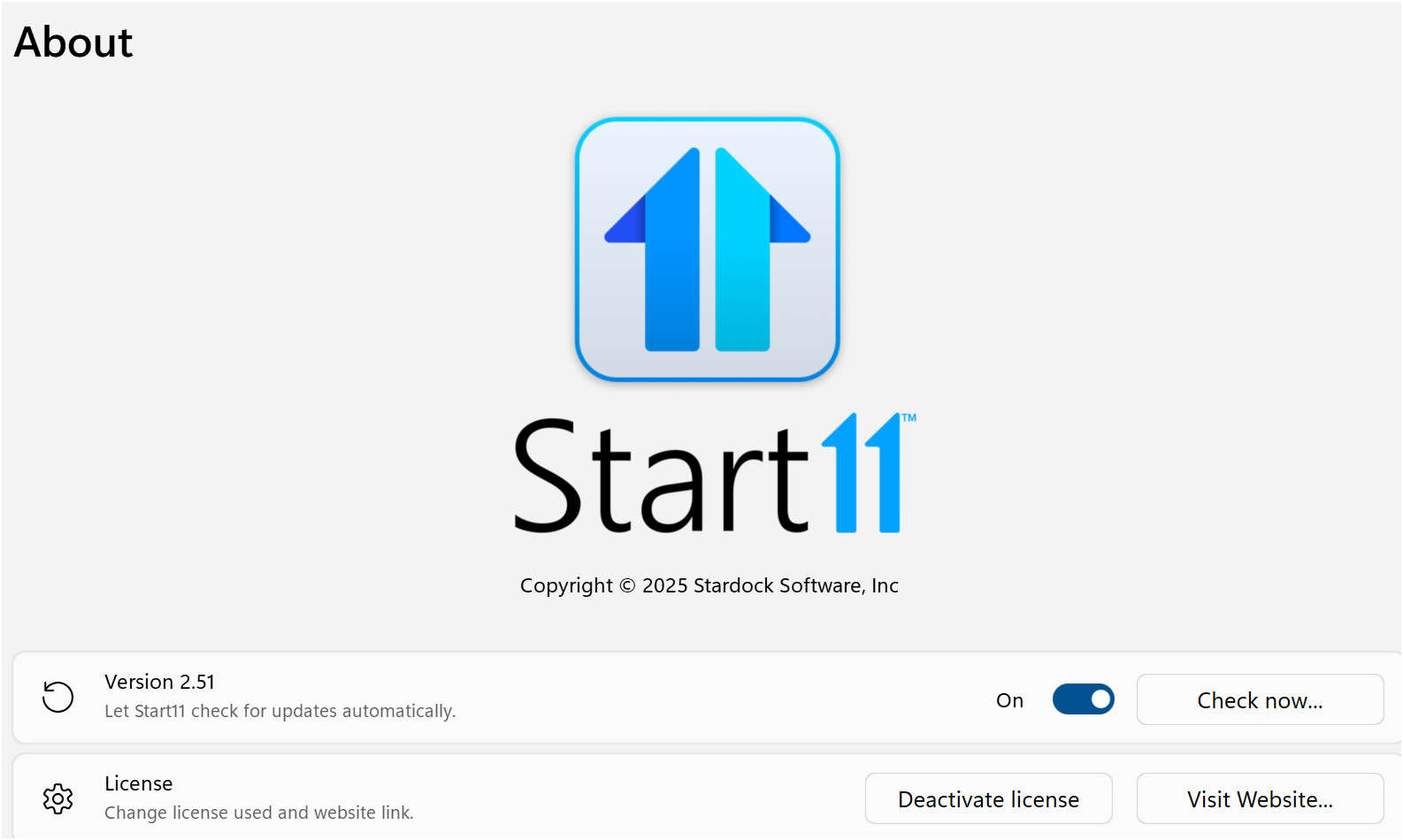
It's been a couple of days since I installed v 2.51 as instructed. The issue remains. Today it's happening more frequently than usual. So, sorry, that wasn't a solution.
I wish I could isolate the situation in which the problem rears its head. Of course, it's when (as I described) I move the mouse cursor within range of the area where the taskbar should fill when popped up, (IF I'd gone down that far, which I haven't,) so I'm right in the middle of being focused on what I do and it's all happened before I realize it. It's been hard to instantly recall how I got there, but I'll let you know if I do discover a pattern.
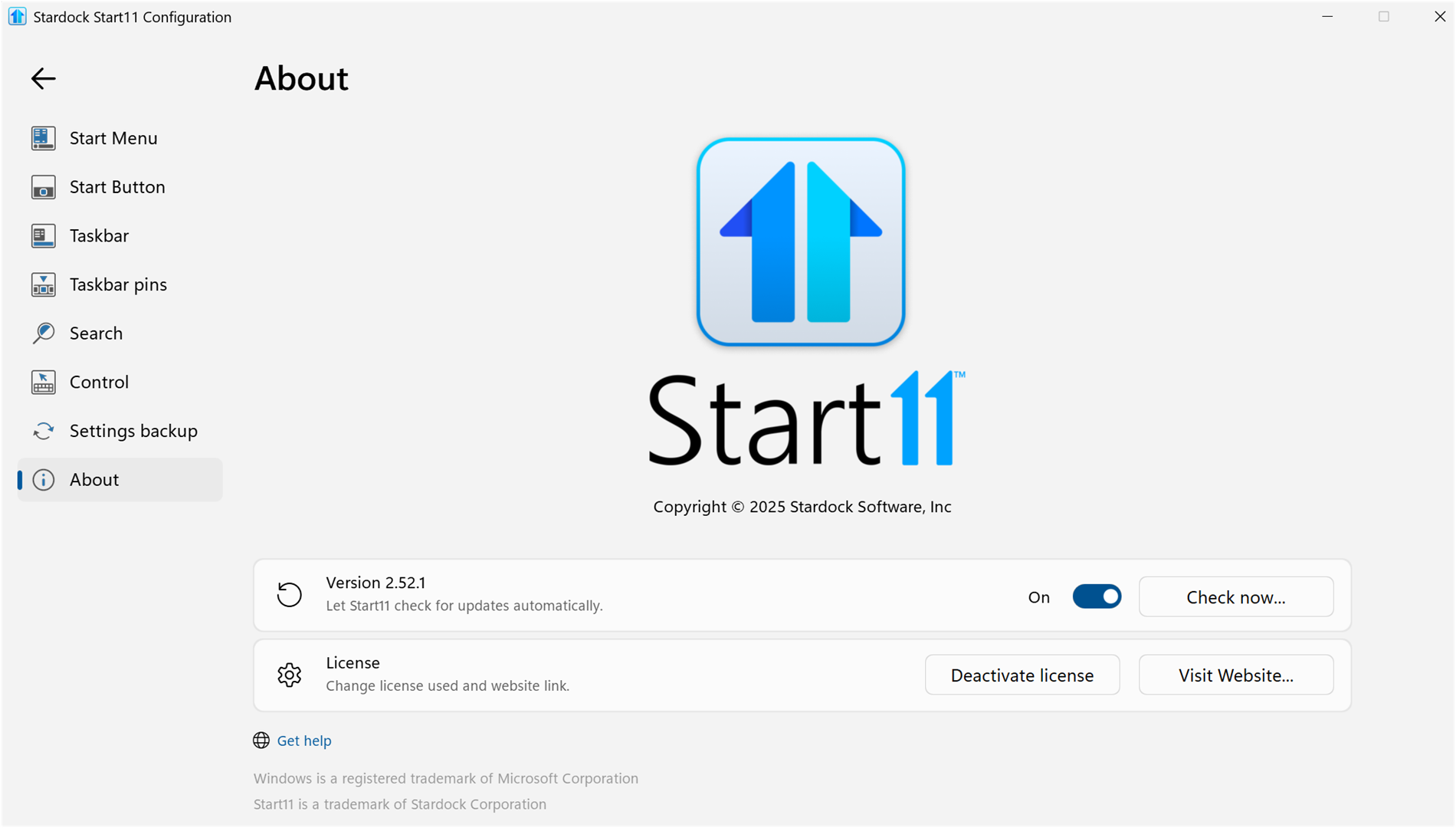
I mentioned for you to try the Start11 v2.52 beta. Have you done that? Please try, uninstall Start11v2.51, reboot immediately (important), download latest version available in your account product download page: https://store.stardock.com/myaccount/products. Install it, reboot immediately again. Retest it and report back.
Please check if you have disable Windows Autohide and only use Start11 autohide. Also, please check if there is no other application that also change how your Taskbar work. Such as Displayfusion, StartAllBack, etc
I understand why you'd like to rule out app conflicts, but sorry dude. You're not paying me for my time, and this is your product. I've already put a lot of time into this. The bug is there, it's for you to figure out why your code isn't working, app conflicts or not. I hope you get it figured out because aside from this it's a great product.
I am trying to figure out what is different in your system that causing the issue. And from what I know, sometimes the conflict is one of the reason. Since you're too busy trying to figure out the issue specific to your system, I have forwarded your problem/question to Stardock Support Team for their assistance. Please keep an eye on this thread for any updates. We appreciate your feedback and patience.
I understand why you'd like to rule out app conflicts, but sorry dude. You're not paying me for my time, and this is your product. I've already put a lot of time into this. The bug is there, it's for you to figure out why your code isn't working, app conflicts or not. I hope you get it figured out because aside from this it's a great product.
Cheers!
End of MillardJMelnyk's quote
I understand your position, and with respect to your time, the fact remains that in order to confirm and correct any issue, we would first need to reproduce that issue. As it stands, I have not been able to do so based on the information in this post.
Considering no other users seem to have reported it at this time either, the most likely cause is that something highly specific to your environment or setup is a contributing factor. The Cleanboot option Basj has suggested would be the most time-effective way to isolate any highly specific changes made to your windows environment, potential program conflicts, etcetera. We'll be happy to help investigate further if you are willing to try this.
Best regards,
Adam McGuinness Stardock Customer Support Specialist
I am experiencing this same behavior in Version 2.6. Windows Taskbar hide option is turned off, Reserve 1 Pixel option is turned on (though I've tried it both ways). If I force it to show by hovering the cursor at the bottom, and then let it auto-hide again, it no longer interferes. Switching desktops (Win+Ctrl+Right/Left) while it's hidden seems to cause it to "appear" invisibly. There may be other triggers, but that one is consistent.
I am experiencing this same behavior in Version 2.6. Windows Taskbar hide option is turned off, Reserve 1 Pixel option is turned on (though I've tried it both ways). If I force it to show by hovering the cursor at the bottom, and then let it auto-hide again, it no longer interferes. Switching desktops (Win+Ctrl+Right/Left) while it's hidden seems to cause it to "appear" invisibly. There may be other triggers, but that one is consistent.
End of libiomjobs's quote
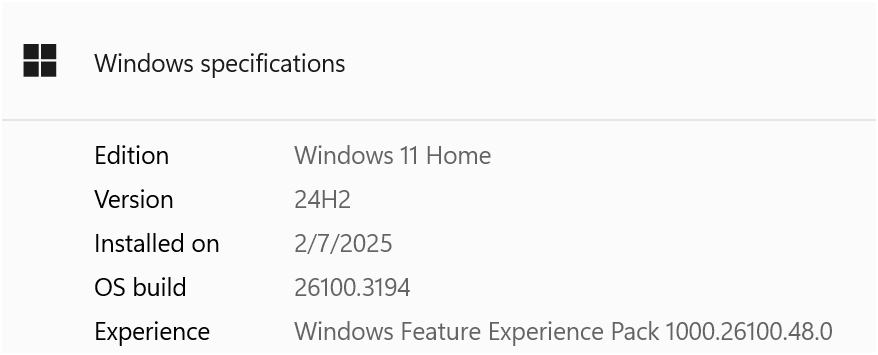
Hello, Sorry to hear you are having issues. Need to know more on your Windows version and OS Build number. Use Winver.exe to get these numbers.
Please try the Start11 2.7 Beta, there are some fixes done on this version on taskbar issues that might also resolved your issue. Please refer here: https://forums.stardock.com/541012. Please refer to Changelog list and on how to get to the beta releases. Try that, make sure to reboot immediately after install. Test it and report back.
The issue remains after installing 2.71. It seems to rear its ugly head the moment I navigate to or from a desktop that does not have a maximized application on the primary display.
The issue remains after installing 2.71. It seems to rear its ugly head the moment I navigate to or from a desktop that does not have a maximized application on the primary display.
End of libiomjobs's quote
If you have not done it yet. please try Clean Boot steps as I mentioned in my Reply#13 above. Try that and report back. If the issue still appear, please post a video showing the issue so we understand it better.
By setting up a fresh instance of Start11, I have isolated the precise condition that gives rise to the issue, at least on my system.
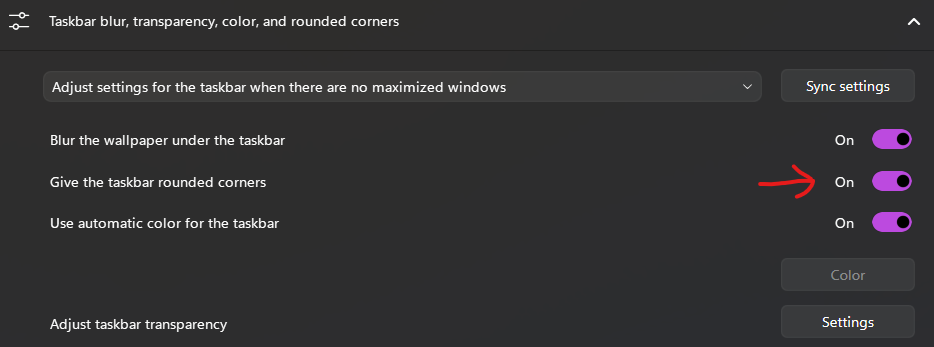
When I turn rounded corners On for the taskbar, the behavior happens exactly as I outlined above. With rounded corners turned Off, the taskbar hides and shows as expected, no phantom appearances.
please post a video showing the issue so we understand it better.
End of basj's quote
Here’s a video of me trying to reproduce your issue on my system. As shown, I’m able to interact with MS Paint while rounded corners are enabled, and I can switch desktops using the Win + Left/Right keys. I can also paint in the area where the taskbar would normally appear at the bottom. It’s possible I may have misunderstood your issue, so could you please share a video demonstrating what you’re experiencing?
Thank you, Basj, for testing it out. I'm posting a video per your request, but first I do want to point that in your video the issue does appear, briefly, between the 7- and 8-second marks. When you switch over to the desktop with Settings and you move the pointer around at the bottom, for a moment the pointer changes to a vertical resize tool (double-headed arrow up-down) for no reason. You'll see it in my video below as well, but I thought it prudent to point it out.
In my video below, I have four desktops (conveniently labeled "Desktop 1", "Desktop 2", "Desktop 3", and "Desktop 4"). For the demo I'm switching between 2 and 3. Desktop 2 has the Start11 Settings app showing the state of the Rounded Corners option ("The Option").
0:00 - The Option is turned off for both Maximized and No Maximized options. Taskbar shows and hides as expected. 0:37 - Switch to Desktop 3, where the Paint app is maximized. Note the buttons on the right side of the status bar (Fit to Window and Zoom Level), which are hidden under the taskbar when the taskbar is visible. Here the taskbar is correctly hidden, and therefore I can interact with the buttons, and the buttons change state and show a tooltip when the pointer hovers over them. 0:59 - Switch back to Desktop 2, where I show no anomalies where the taskbar would be. 1:12 - I switch on The Option for No Maximized Windows, leaving The Option for Maximized Windows turned off. 1:28 - Switch back to Desktop 3. Note that the taskbar is (ostensibly) hidden, and the full maximized Paint window is visible, including aforementioned Fit-to-Window and Zoom-Level options. 1:32 - I hover over the Fit-to-Window and Zoom-Level buttons. They don't change state and no tooltip appears. 1:38 - Move the pointer up to where the top of the taskbar would be if it were visible. The pointer changes to a vertical resize tool, indicating readiness to resize the taskbar. 1:41 - Move the pointer to open the Zoom Level popup. Note the tooltip that appears is actually the tooltip for the System Tray Hidden Icons expander. 1:43 - Click now forces the taskbar to appear and the System Tray Hidden Icons pop up. 1:50 - Once the taskbar is hidden again, the Fit-to-Window and Zoom-Level buttons are accessible again. 1:58 - Switch back to Desktop 2, where I show that the vertical resizer now shows up in the empty part of the desktop where the top of taskbar would be. I also show tooltips that should only appear when the taskbar is visible, such as app previews when hovering over the taskbar app icons. 2:15 - I switch on The Option for Maximized Windows, to synchronize the two settings, and for the rest of the video I show that the issue has gone away.
In conclusion, the bug appears to be linked to switching the rounded-corner style between Maximized and No Maximized states when the two states don't have the same style. In further testing I have determined that simply maximizing or un-maximizing a window while the taskbar is hidden causes the issue to show itself.
I hope I have been sufficiently thorough in my demonstration.
Welcome Guest! Please take the time to register with us.
Richer content, access to many features that are disabled for guests like commenting and posting on the forums.
Access to a great community, with a massive database of many, many areas of interest.
Access to contests & subscription offers like exclusive emails.

 Stardock Forums