Start11: Can't resize taskbar because I can't uncheck "Lock all taskbars"

I've disabled all "lock" features in the Registry, as well as in Local Group Policy Editor (see below), restarted Explorer as well as rebooted the PC several times, and yet I still can't resize the taskbar. Right-clicking on an empty section of the taskbar shows that  "Lock all taskbars" is checked and it's greyed out, can't be unchecked. I'm running Windows 11 22H2 on a Dell PC with 16 GB RAM, Intel Core i5-8400 @2.8 GHz.

16,382 views 9 replies
Reply #1 Top

Hello,
Sorry to hear you are having issues. Need some more information.

  1. Why do you need to have to do the reg heck for unlocking the taskbar?
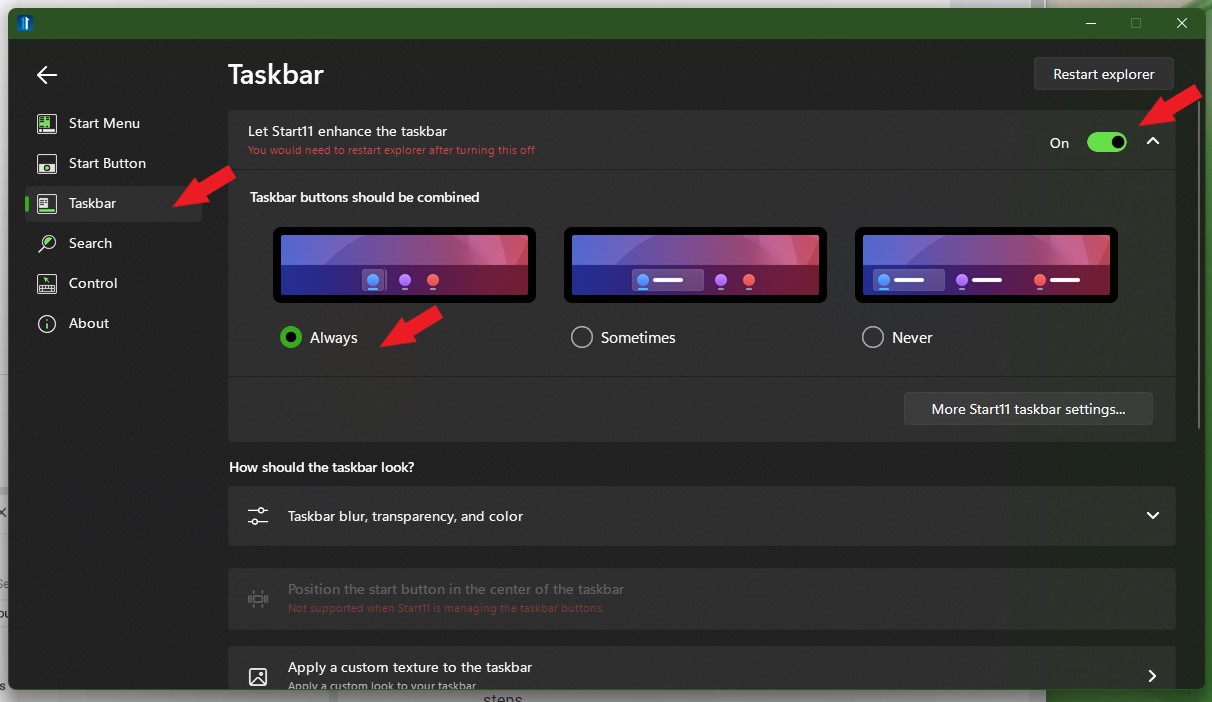
  2. If you have Start11 to resize the taskbar you need to turn on the Enhance the taskbar. Have you turned it on? Refer to screenshot below. *ignore the 3 arrow pointing to always: its for something else.

Thanks
Basj,
Stardock Community Assistant.

Reply #2 Top

Yes of course, I have absolutely enabled "Enhance the Taskbar", as well as "Allow the taskbar to be resized". I also did the registry and LGPE settings b/c the Start11 settings did not allow me to resize the taskbar. And then, neither did the registry/LGPE settings.

Reply #3 Top

This usually means you have your taskbar in autohide mode.

Autohide taskbars can only be one line tall.

Reply #4 Top

Yes, you're right about that, thank you, I got it to work with auto-hide turned off. However, this is not how Windows 10 works. I've always had a 2- or 3-row taskbar that auto-hides, on my Win10 PCs. I need to have the extra taskbar space without sacrificing the screen height for apps and documents. Do you think this might work in a future Start11 update?

Reply #5 Top

Oh, please... please make this possible. Like seriously, this needs to be added.

Reply #6 Top

Quoting trparky, reply 5

Oh, please... please make this possible. Like seriously, this needs to be added.

+1

This limitation is exactly backwards of how it should be. I'd never want more than a one row task bar if it wasn't hiding, wastes too much screen real-estate. I turn on auto-hide so that I can have multiple rows w/o wasted screen space. 

Reply #7 Top

Hey, I know I'm super late to the game and this thread but, if you disable auto hide, then enable resize, then resize the bar, enable auto hide, then restart explorer, it works beautifully. Just my two cents. Good luck guys.

nSomniac

+1 Loading…
Reply #8 Top

We implemented our own autohide mode in later versions which let's you autohide and have multiple line taskbars.

Reply #9 Top

My experience was that even with windows auto-hide disabled it still wouldn't let me enable resize without disabling auto-hide in start11 also.  I have the newest most up to date version of start11 v2. I checked before replying just to make sure