Learning DX Step-By-Step - #3
Tutorial #3 - Attack of the Clones
 WinCustomize Forums

 |
|||
| Step-by-Step Tutorials |
#3 - Attack of the Clones |
||
|
A series by RomanDA |
|||
|
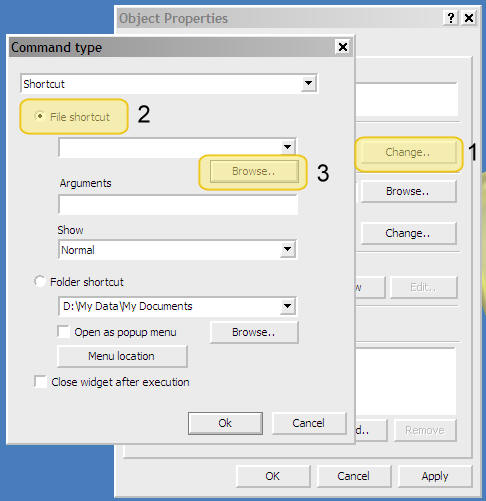
Listing of other DX Tutorials: Click here Today's Lesson: "Attack of the Clones" In this lesson we will cover how to create a clone from an object, so we can have multiple items on the screen linked to a Folder, a Program and a web URL. In order to use this tutorial, you will need to first go thru Tutorial #2 (and download the zip file from there as well). I will assume you downloaded the zip of the png files, followed the Tutorial #2, and are ready to take your Lightbulb and make a new one that will point to a Program and another to a URL. For this and all the Step-By-Step DX Tutorials you will need to purchase DesktopX for $14.95 from Stardock. Lets get started. |
|||
| STEP 1 - Cloning the Lightbulb | |||
Again, I know this is
redundant but you need to have completed Tutorial #2 before you attempt
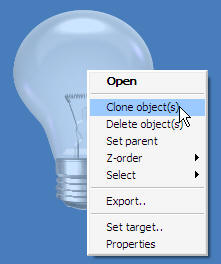
this one. That said, we will take our lightbulb and make a clone:
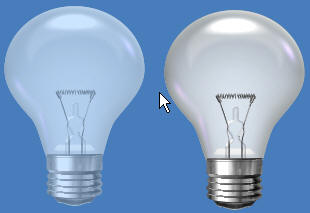
You have just created a CLONE!! *** Repeat this step one more time so that you end up with 3 lightbulbs *** |
|||
| STEP 2 - Point your Clone to a Program | |||
|
|||
| STEP 3 - Adding a TOOL-TIP to these so you know which one is which | |||
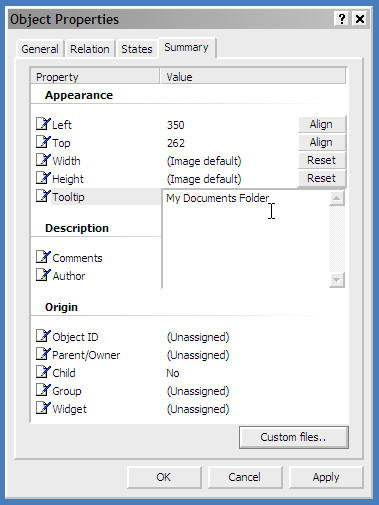
Ok, you have 2 identical
(well 3 really) clones on your desktop. So that you can know which
one does what, we are going to add a TOOL-TIP (the text that shows up
when you mouse over something) to each.
|
|||
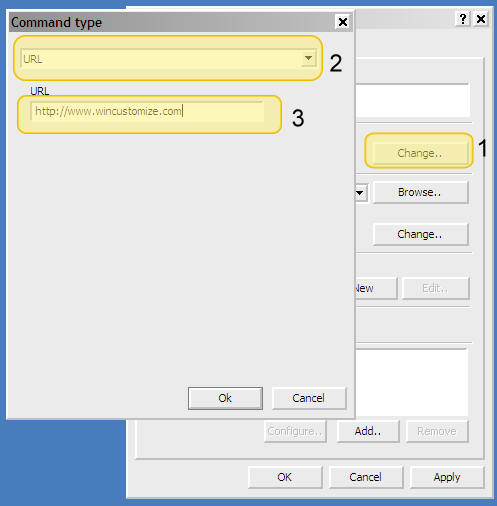
| STEP 4 - Making a URL Linked Object | |||
|
|||
| CONCLUSION | |||
|
Ok, That wasn't hard was it? Ok, yeah so now you have these 3 HUGE lightbulbs on your desktop, and they suck, well make your own images, and change them! Changing them is simple, go back to Tutorial #2, look at step #3 and just pick your own images for "mouse over" and "mouse away" states. You can even download from the MISC Icons library and use them for these states. Check back as I add new Step-By-Step Tutorials on how to make this a link to a folder, web-site, or just about anything you want! I hope you have enjoyed this step into DX, and look forward to the next installment..
|
|||