Learning DX Step-By-Step - #1
Tutorial #1 - HELLO WORLD
 WinCustomize Forums

 |
||
| Step-by-Step Tutorials |
#1 - Hello World |
|
|
A series by RomanDA |
||
|
Listing of other DX Tutorials: Click here Today's Lesson: "HELLO WORLD" the first program all programmers have to make. In this lesson we will cover how to create a simple text object, change its color, font, and size, we will even make it change color and size when we move our mouse over it. We will take this 1 step at a time, so you can follow along. For this and all the Step-By-Step DX Tutorials you will need to purchase DesktopX for $14.95 from Stardock. Lets get started. |
||
| STEP 1 - Load DesktopX | ||
|
Once you have DesktopX
installed, look in your Start Menu for "Object Desktop" then for "DesktopX",
click it to load the program.
You will see the DesktopX
STARTUP Screen
(yours wont say PROFESSIONAL unless you purchased PRO)
It will load the DesktopX
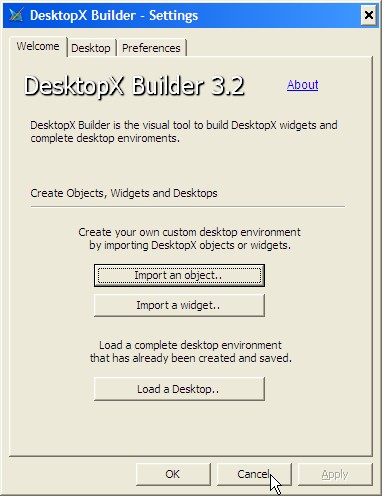
SETTINGS Window:
We just wish to get these screens out of the way for now, we are not going to use them. Click "CANCEL" on the SETTINGS window, and DONE on the STARTUP Screen. You should have a blank
screen now with a new icon in your system tray:
|
||
| STEP 2 - Create an object | ||
RIGHT CLICK on the
 icon in
your system tray and you will see a popup menu like this one: icon in
your system tray and you will see a popup menu like this one: |
||
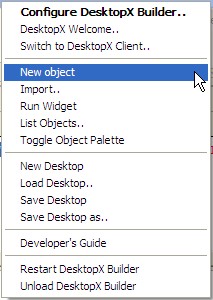 |
You will need to select the "NEW OBJECT" item on this menu. | |
|
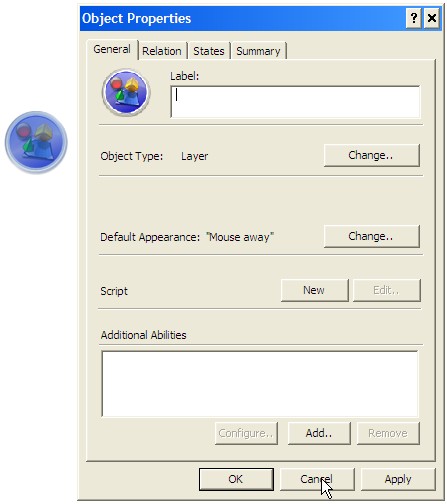
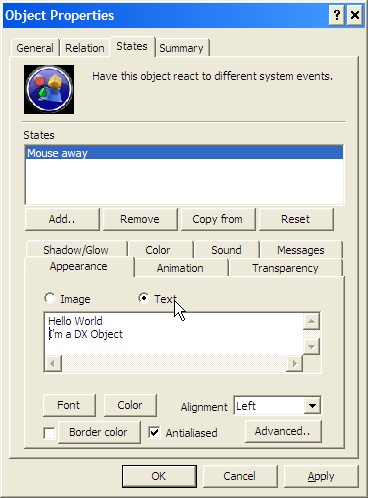
You will see the OBJECT
PROPERTIES window below (as well as the object itself).
This window will be referenced over and over in these tutorials.
IE: Open Properties / Select States
(which would mean to select the States TAB in the
Properties window)
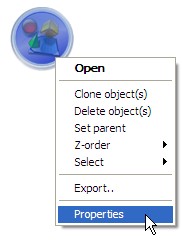
You can access this
properties window at any time by RIGHT-CLICKING on the object and
selecting PROPERTIES.
|
||
| STEP 3 - ADDING THE HELLO WORLD TEXT | ||
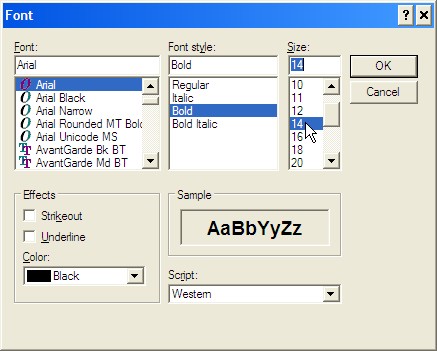
When you added the object,
it brought up the PROPERTIES window, now select the "STATES" tab to
change to this TAB.
|
||
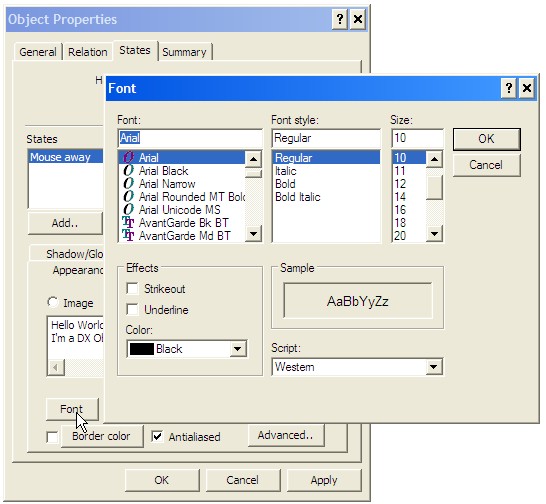
| STEP 4 - Changing the FONT/STYLE/SIZE | ||
|
||
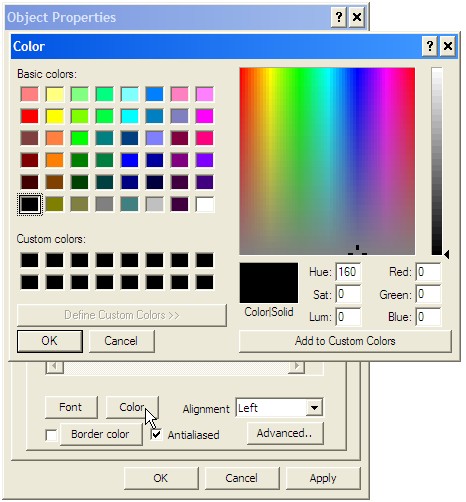
| STEP 5 - Changing the FONT COLOR | ||
|
||
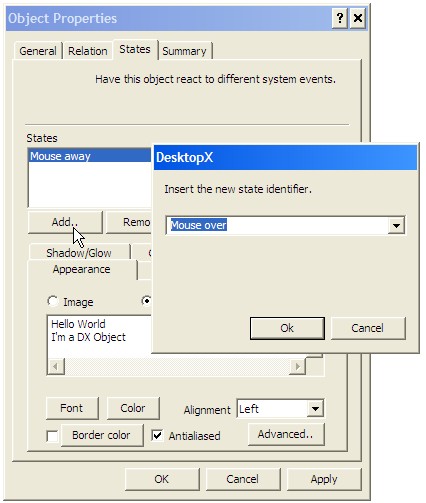
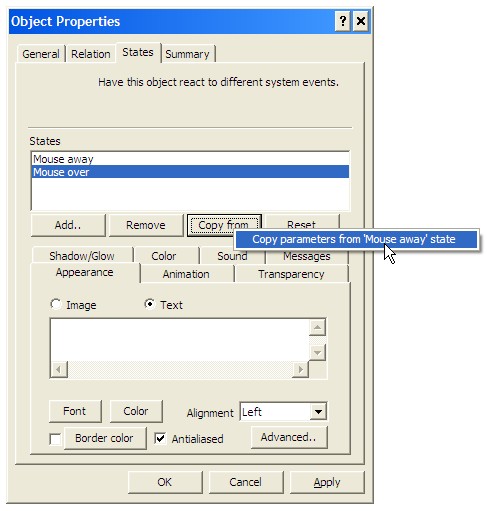
| STEP 6 - Creating a MOUSE-OVER/OUT Effect | ||
|
Ok, so we have our text, its
boring, its just sitting there doing NOTHING. Don't you want to
have it change color, style, font, or size you move your mouse over it? Well, in DX this is VERY simple.
Test it out, move your mouse over the object and see what it does. |
||
| CONCLUSION | ||
|
Ok, you have made your first
DX Object, now what? Check back as I add new Step-By-Step Tutorials on how to make this a link to a folder, web-site, or just about anything you want! I hope you have enjoyed this step into DX, and look forward to the next installment.
|
||
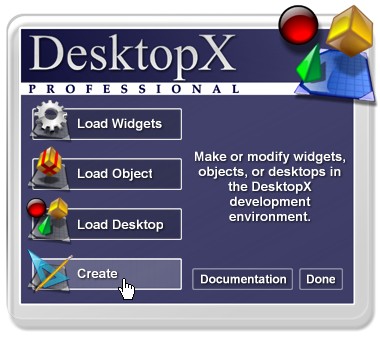 One you see this screen,
click on "CREATE" because we want to CREATE a new Widget.
One you see this screen,
click on "CREATE" because we want to CREATE a new Widget.