Can't Find A Driver For My Hard Drive (getting nagged on reboot)

I aquired a hard drive from a friend about a week ago and hooked it up to my computer. It is a 40 GB Seagate hard drive. It works great, I can store information on it and such, but I am having a problem.

Everytime I reboot my computer I get some "errors". I say "errors" because the hard drive still works, and my OS functions fine, but I get the following:
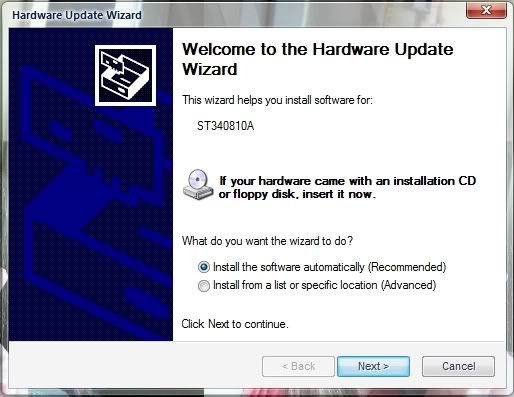


Now I have searched for the ST340810A driver, and I think I found it here: Driver Guide. Downloading it however, and trying to install it gives me the error that the program was made for windows 3.1 .

So my question is... where can I download Seagate drivers for windows xp home sp2, or how can I stop the nag screen to get the drivers ?

Thanks ^_^
7,826 views 8 replies
Reply #1 Top
what is the location (Primary/Secandory, Master/Slave)of the hard?
Reply #2 Top
It is a Secondary Slave drive. The pin (little plastic piece) in the back is not there as stated on the top of the hard drive for the correct position I have it in.

This was one of the first things I checked. I also tried placing it as a Secondary Master and it did the same thing.
Reply #3 Top
Use your Device Manager to see if it is the HDD that has the error first.. It seems unlikely that WinXP SP2 would not have drivers already in there..
Reply #4 Top
Keikonuim,

Have you done the following?

1 - Boot to set-up (BIOS/CMOS settings) screen

2 - Verify that the new drive is recognized on IDE (1) as secondary slave device (note - this assumes that you have the first device on the secondary adapter set as 'Master'. If you have the first device set for "Cable Select", you will need to set the new drive to "Cable Select" as well - assuming an 80 wire ribbon cable - due to the fact that if one device is set to "Cable Select", all devices will run at "Cable Select").

Edit - you can also set the original drive to "Master", and then the new drive to "Slave".

3 - Verify that both "Auto-Detect" and "UDMA" are enabled

4 - Boot to Windows

5 - Go to Administative Tools\Computer Management\Disk Management and delete the current partition on the new drive

6 - Create a new "Basic" logical partition, and then format the new partition (NTFS recommended).

7 - Reboot machine to verify all is well

Note - this would be the standard procedure for installing a new drive that has low level pre-formatting (which this drive probably does). Once the drive is formatted by the operating system, it should be loaded and recognized without issue.

Note #2- you will obviously need to backup any content currently on the drive that you want to save before deleting the current partition.
Reply #5 Top
I could not create a new basic logical partition (I did not have that option). Sorry to get back to you so late... my computer is slowly getting worse >_<.

For starters, I rebooted my system, and my drivers for my CD/DVD Drives are not being detected. I have AV and firewall software running 24/7, so its no virus, I know that. The drives themselves are however. I don't know whats going on...

After each reboot something new seems to be screwed up. The place I bought my computer from refuses to give me (or even sell me) a Windows XP install disk... and now that really doesn't matter cause none of my drives work. I have no floppy drive, so thats also out of the question.

Other than that, its working. Looks like I'm gonna have to figure something out... *sigh*.

Thanks for your help.
Reply #6 Top
Dunno if this'll help, but if you uninstall those non-functioning drives in 'device manager' then reboot, your BIOS and OS should auto detect them and reinstall the necessary drivers.

I had no end of trouble with my new Lite-On DVDRW SHM-165P6S drives, reading, writing, autorun, you name it...in the end I just uninstalled them and rebooted. Upon restart XP did a new hardware install and now both drives are behaving perfectly. Had the same problems in Vista RC1, did the same thing and voila, they're running properly.

I also installed an old 80 gig HD in my machine and could not get XP to recognise it, so reseated the connections, changed it from a slave to master on the secondary (not primary) IDE in BIOS, rebooted to have it appear in BIOS/Device manager and then reformatted it....once it was successfully installed/recognised/formatted, I changed it back to a slave on the same IDE and all is well.

Hopefully the same will resolve your issues.

***BTW, I'm self taught and figured all this out for myself from tips picked up along the way....so if this doesn't help resolve your issue, I'll become untracable through the witness protection program and you'll have to send out an SOS to yrag. ***
Reply #7 Top
Format the drive. WWW Link DiscWizard for Windows.
Reply #8 Top
Yay, that worked (formatted the drive first, then uninstall and reboot). Not sure why it didn't the first few times lol.

So thanks for your help guys, you all ROCK !